Website Analytics: GA4, Search Console, and What to Actually Track
Nearly every company has a Google Analytics tracking snippet on its website, yet Eurostat data shows that only 10.8% of European Union enterprises with ten or more employees actually analyze web data. Everyone else glances at total visits once in a while, a number that says nothing about whether the website makes money. Here is how to divide the work between Google Search Console and Google Analytics 4, which four reports and key events to watch, which five settings to fix on day one, and how to read your numbers when more than half of European users decline advertising tracking.
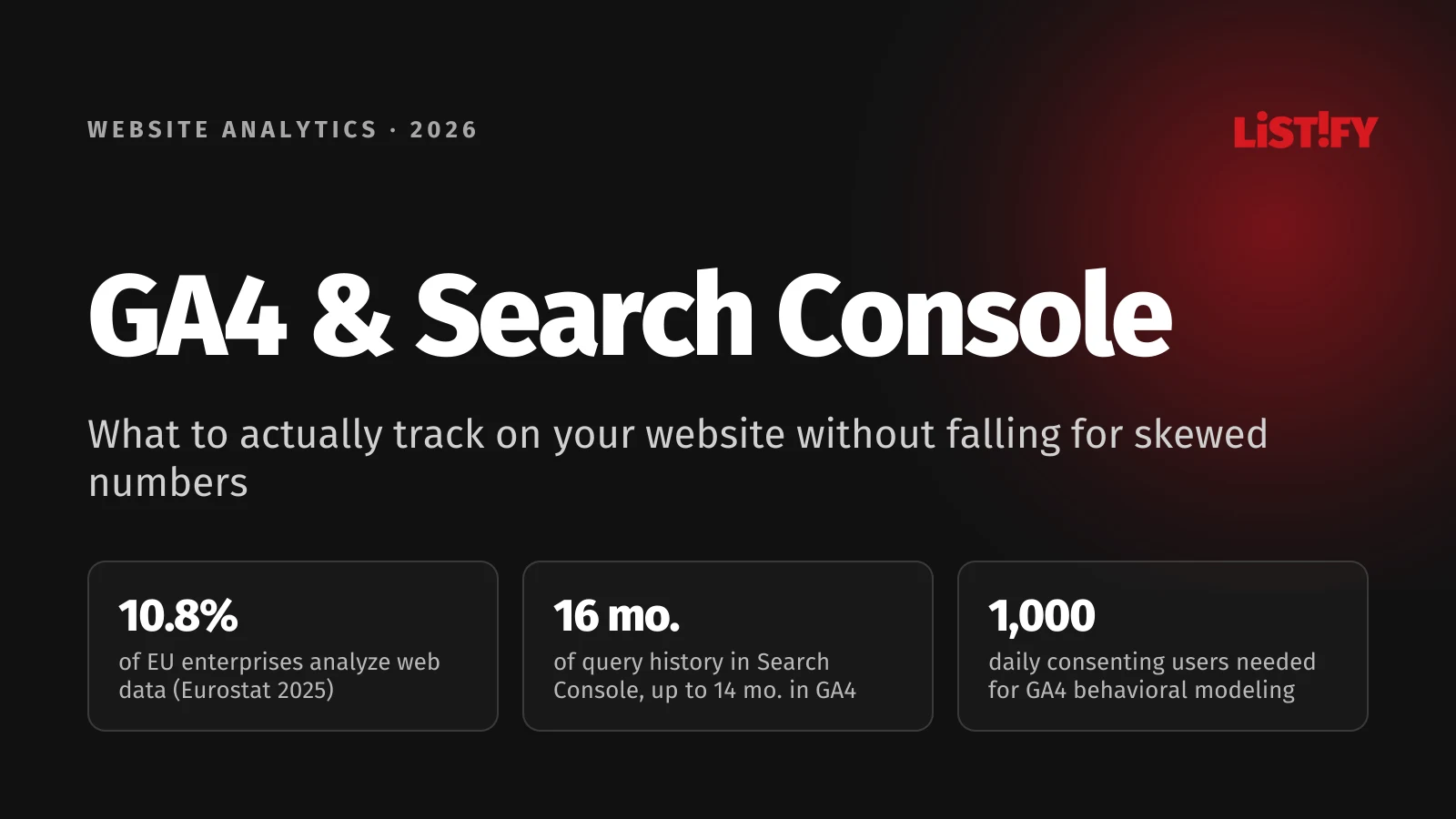
Installing a tracking tag and running a website on data are two very different things. According to Eurostat’s 2025 enterprise survey, 39.9% of European Union enterprises with ten or more employees perform some form of data analytics (47.0% in Czechia, 38.8% in Slovakia). Most of that work happens in finance and operations: 26.2% of EU businesses analyze transaction records and 17.6% analyze customer records from CRM systems. Only 10.8% of EU enterprises analyze web data (13.0% in Czechia and 15.1% in Slovakia).
- Transaction records (sales, payments)EU27: 26.2%Czechia: 40.0%
- Customer data (purchases, reviews)EU27: 17.6%Czechia: 26.0%
- Social media dataEU27: 11.4%Czechia: 11.4%
- Web dataEU27: 10.8%Czechia: 13.0%
Share of enterprises with 10 or more employees (excluding the financial sector and agriculture) analyzing each data source. Source: Eurostat, isoc_eb_das, updated February 2026.
Even teams that open analytics every week often look only for reassurance that traffic is going up. In a March 2026 survey of 200 company representatives (primarily marketing managers, owners, and executives) by MNForce reported by Mediaguru, 42.5% tracked website traffic in digital campaigns while only 24.5% tracked conversions. Raw traffic never tells you whether visitors come from your target market or whether your mobile contact form is broken.
You don’t need dozens of custom dashboards to get clear answers from website analytics. You need two free Google tools connected properly, five default settings fixed before they skew your history, and a clear line between behavioral trends and your own database of leads and orders. If your next step is turning campaign numbers into gross margin, CAC, and ROI for the CEO or CFO, read our companion guide on marketing reporting for executives.
01GA4 vs. Google Search Console: what each tool is built to do
Most confusion in website measurement comes from expecting one tool to do both jobs. Google Search Console (GSC) measures what happens in Google Search before anyone clicks your link. Google Analytics 4 (GA4) tracks what visitors do after they land on your website, whether they arrived from Google, Bing, paid ads, an email newsletter, social media, or a link inside ChatGPT.
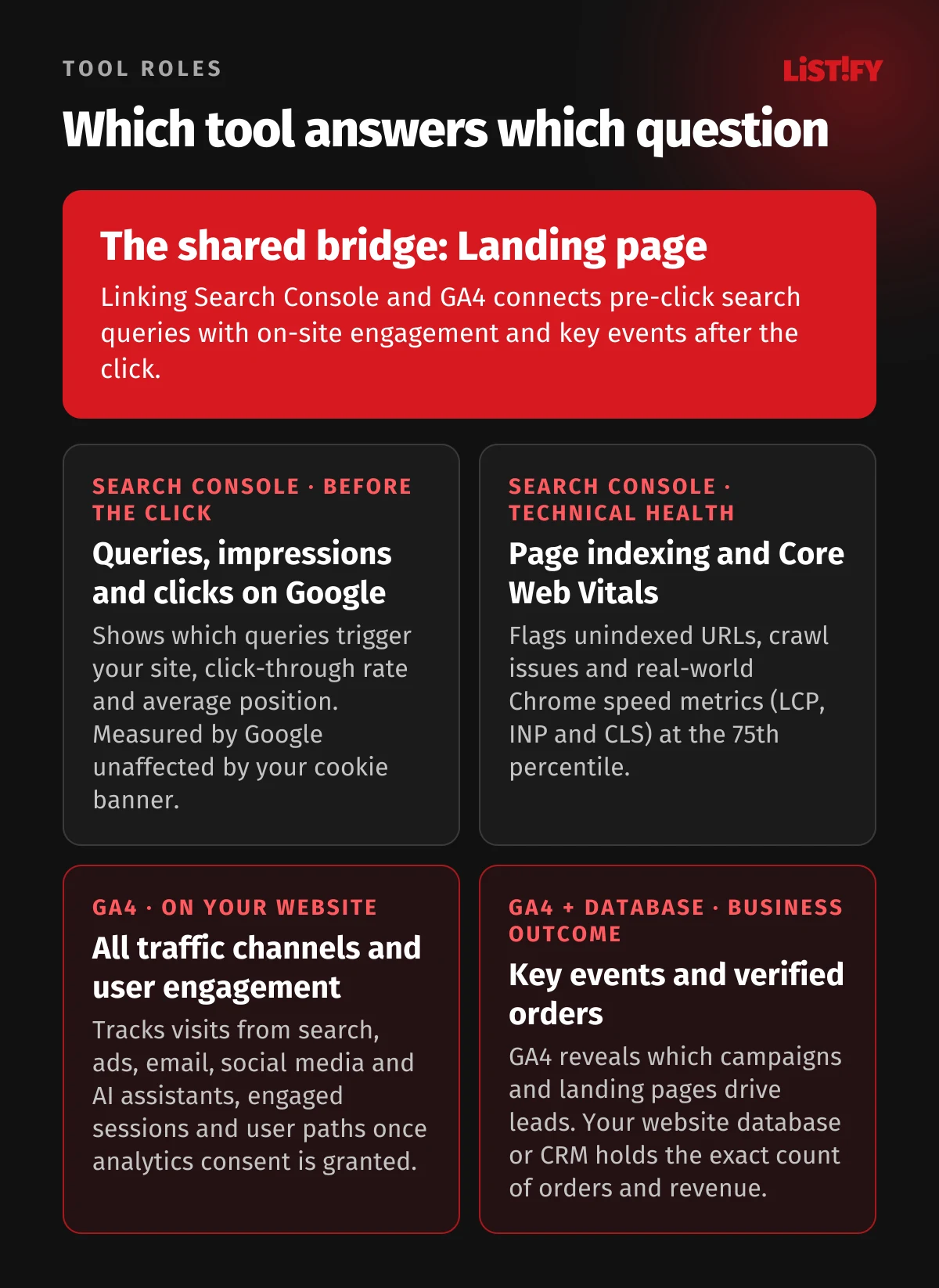
Because the two tools measure different moments, clicks in Search Console will never match organic search sessions in GA4. Search Console logs every click on Google’s servers before your site even loads. GA4 runs inside the visitor’s browser after the page loads, and across the European Economic Area under ePrivacy rules (such as Section 89(3) of the Czech Electronic Communications Act) and Google’s EU user consent policy, it records full analytics data only when the visitor grants consent in your cookie banner.
| Feature | Google Search Console (GSC) | Google Analytics 4 (GA4) |
|---|---|---|
| Where it measures | In Google Search results (before the click) and when Googlebot crawls your site. | Directly on your website or app (after the page loads in the browser). |
| Traffic sources covered | Organic Google Search, Google Discover, and Search generative AI features only. | All sources: search engines, paid ads, social networks, email, referrals, AI assistants, and direct traffic. |
| Impact of cookie banners and ad blockers | None. Impressions and clicks are logged on Google’s servers without cookies on your domain. | Major. Without analytics consent or when tracking scripts are blocked, visits do not appear in standard reports. |
| Core metrics | Impressions, clicks, click-through rate (CTR), average position, indexing status, Core Web Vitals. | Users, sessions, engagement rate, events, key events, and revenue. |
| Data retention | Last 16 months. | Standard reports have no time limit; user-level and event-level data in Explorations is kept for 2 or 14 months. |
| Data freshness | Final data is typically available about 48 hours after collection. | Realtime report updates immediately; standard tables process within a few hours to a day. |
How to link both tools and unlock the hidden reports in GA4
In GA4 Admin, open Product links and select Search Console links. According to Google Analytics documentation, one GA4 web data stream can be linked to exactly one verified Search Console property. The integration joins your search and on-site metrics across shared dimensions: Landing page, device, and country.
Linking the accounts does not automatically show the reports in your left navigation. By default, GA4 leaves the Search Console collection unpublished. Open Library at the bottom of the left-hand menu in GA4, find the Search Console collection card, open its three-dot menu, and click Publish. Two new reports will appear: Google Organic Search Queries (showing search queries and Search Console metrics) and Google Organic Search Traffic, which joins landing pages with GA4 engagement rate and key events.
02Google Search Console: the four reports worth checking
Search Console has dozens of specialized tabs, but for running a business website or online store, four reports cover almost everything you need. The rest only matter during a technical migration or audit.
1. Performance report and low-hanging query opportunities
The Performance report tracks four numbers: total clicks, total impressions, click-through rate (CTR), and average position. As Search Console Help explains, average position records the topmost link to your property in search results for a given query. That means your site-wide average position can drop from 8 to 12 after you publish great new articles simply because your site started ranking on page two for hundreds of brand-new keywords.
Since August 31, 2026, Google has also rolled out standalone Search Generative AI performance reports to all websites worldwide, breaking out impressions in AI Overviews, AI Mode, and Discover. For day-to-day content work, three filters in the classic Performance report deliver the fastest return:
- Queries ranking in positions 4 to 15 with high impressions and low CTR: Your page is already on page one or just below it, but searchers aren’t clicking. Tightening the
seoTitle, adding a specific number or year, or rewriting the opening paragraph often lifts traffic without building a single new backlink. - Branded vs. non-branded queries: Filter out queries containing your company or domain name. That shows how many people discover you while searching for a problem rather than typing your name.
- Pages with year-over-year click drops: Compare the last 3 months against the same period a year earlier. Pages losing clicks while impressions hold steady usually have outdated facts or have been overtaken by a more specific competitor guide.
2. Page indexing
The Page indexing report splits URLs into Indexed (green) and Not indexed (gray). Google explicitly notes in its Page indexing documentation that indexing every URL on your site is not the goal. Pages with a noindex tag (such as internal search results or thank-you pages), old redirected URLs, and duplicate URLs consolidated via canonical tags belong in the gray bucket.
Pay attention in two situations: when important service pages, product categories, or articles sit under “Discovered, currently not indexed” or “Crawled, currently not indexed,” or when server errors (5xx) and unexpected 404s spike. Keep in mind that each status table lists at most 1,000 example URLs. After you fix an issue and click Validate fix, Google’s validation process typically takes about two weeks.
3. URL Inspection
The search bar at the top of Search Console opens the URL Inspection tool for any single page. It tells you whether the URL is in Google’s index, which canonical URL Google selected, when Googlebot last crawled it, and whether structured data passed validation. When you publish a major new page or rewrite an existing one, click Request indexing to put the URL in the priority crawl queue.
4. Core Web Vitals from real Chrome users
While a one-off Lighthouse test measures your page on your own laptop under simulated conditions, the Core Web Vitals report in Search Console uses real-world field data from the Chrome User Experience Report (CrUX) evaluated at the 75th percentile of page loads, split between mobile and desktop. According to the official thresholds on web.dev, a page passes when its largest content element renders within 2.5 seconds (LCP), interaction latency stays at or below 200 milliseconds (INP), and visual layout shift stays at or below 0.1 (CLS).
Search Console grades each group of similar URLs by its worst-performing metric. If your product template has fast LCP and INP but fails CLS because a promotional banner loads without reserved dimensions, the entire URL group is marked poor. Smaller or newly launched sites without enough traffic in the CrUX dataset will see a “No data available” message until real-user volume grows. For more on how mobile speed affects both paid campaigns and organic rankings, see Mobile-First Design Explained: Why Your Website Should Start on a Phone and SEO Strategy 2026: What Actually Works.
03Google Analytics 4: which metrics and events to track
Since Google permanently shut down standard Universal Analytics in July 2024, every interaction in GA4 is stored as an event (events). Page views, scrolls, outbound clicks, and form submissions are all events with parameters. To keep reporting clean, separate your GA4 setup into three layers: visitor engagement, automatically collected events, and key events tied to business value.
Engaged sessions and what bounce rate means in GA4
In Universal Analytics, bounce rate meant any single-page session, even if a prospect spent ten minutes reading a detailed pricing guide and called your sales team. In GA4, Google defines bounce rate as the exact inverse of engagement rate. A visit counts as an engaged session as soon as it meets at least one of three criteria:
- It lasts longer than 10 seconds (you can adjust this timer up to 60 seconds in your web stream settings).
- It includes at least one key event.
- It includes at least 2 pageviews or screenviews.
If a landing page has a 68% engagement rate, its bounce rate in GA4 is 32%. A low engagement rate on a paid search or paid social landing page is an immediate red flag: either the ad promised something the page doesn’t deliver right away, or the page takes too long to become usable on a phone. For a breakdown of how to structure high-intent pages, see Anatomy of a High-Converting Landing Page.
Enhanced measurement: what GA4 tracks out of the box and where it misfires
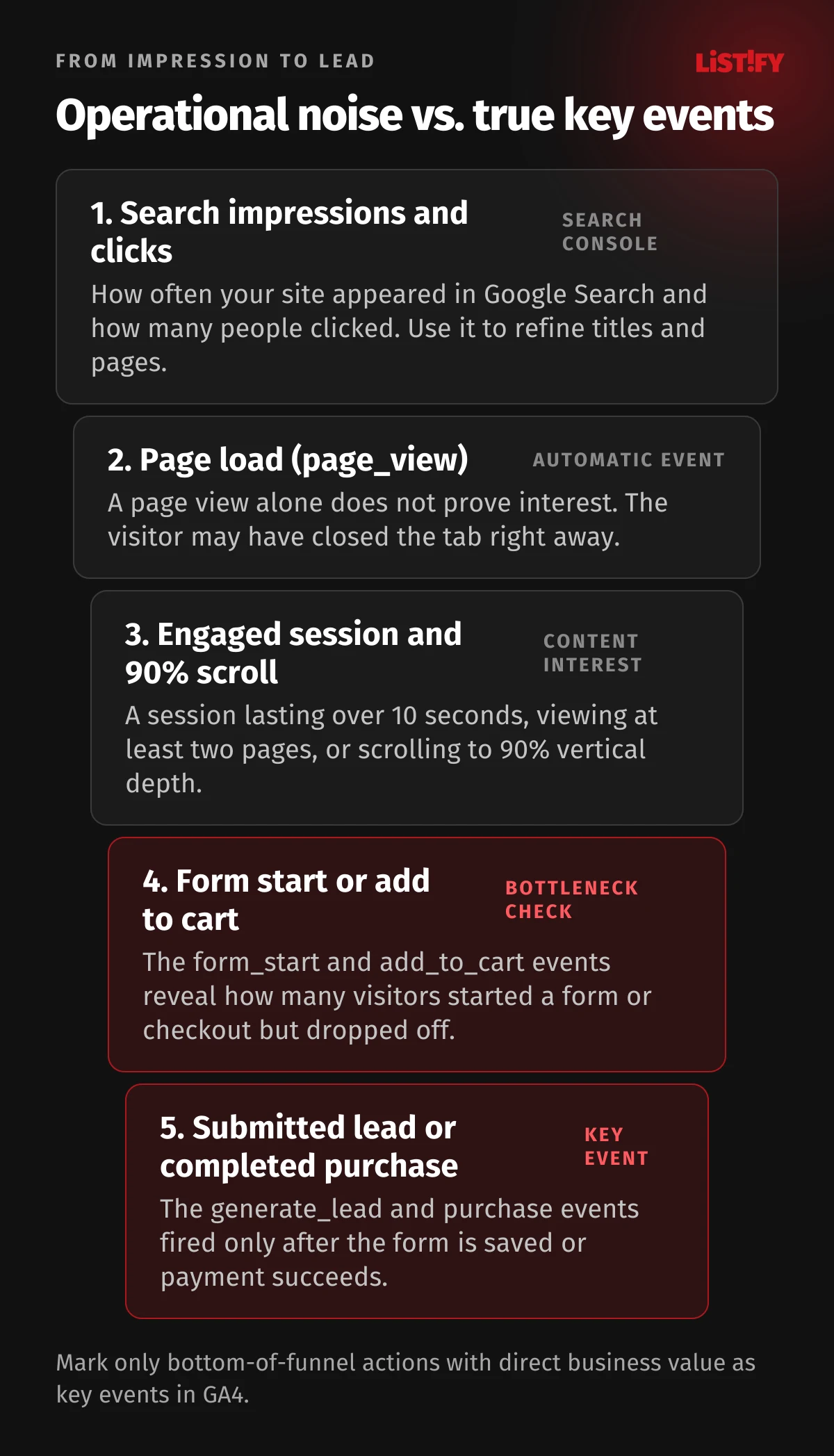
When you enable Enhanced measurement on a web data stream, GA4 automatically tracks seven event categories without code changes: page views (page_view), scrolls to 90% vertical depth (scroll), outbound link clicks (click), site search (view_search_results triggered by query parameters q, s, search, query, or keyword), embedded YouTube video playback when JS API support is enabled (video_start, video_progress at 10, 25, 50, and 75%, and video_complete), file downloads (file_download for pdf, xlsx, docx, zip, and other extensions), and form interactions (form_start and form_submit).
Automatic form tracking (form_submit) is where modern websites run into the most false positives. On some sites it fires whenever a user clicks submit with an invalid phone number; on single-page apps that submit forms asynchronously via JavaScript (fetch), it often fails to fire at all. Treat enhanced measurement events as helpful diagnostic signals, but always track actual lead submissions and purchases with your own dedicated event.
Key events vs. conversions
Google unified its terminology across analytics and advertising. What used to be called a conversion inside GA4 reports is now called a key event. As Google Analytics Help explains, the term conversion is now reserved for events shared with Google Ads so both platforms report ad conversions using identical logic.
The most common mistake is marking a visit to the Contact page or a 90% scroll as a key event. That floods your reports with hundreds of fake “goals” that have nothing to do with revenue. Stick to a short list of true key events based on your business model:
| Website type | Primary key events | Diagnostic events for spotting bottlenecks |
|---|---|---|
| Company and B2B website | Server-confirmed lead submission (generate_lead), booked consultation or demo call. | First interaction with a form (form_start), price calculator estimate, brochure or price list download (file_download). |
| Online store (e-commerce) | Completed order (purchase) with net order value and currency. | Product detail view (view_item), add to cart (add_to_cart), checkout start (begin_checkout). |
| Web app and SaaS | Completed account registration (sign_up), upgrade to paid plan (purchase or subscribe). | Onboarding completion, first core action inside the product. |
| Content site and blog | Newsletter subscription (sign_up), click-through to a service inquiry. | 90% article scroll (scroll), engagement rate by organic landing page. |
04UTM parameters, traffic channels, and the mystery of Unassigned
When you open the Traffic acquisition report in GA4, visits are grouped into Google’s Default channel group: Organic Search, Paid Search, Direct, Referral, Email, social channels, and the AI Assistant channel. According to Google’s Default channel group documentation, the AI Assistant channel automatically captures visits from tools such as ChatGPT, Gemini, DeepSeek, Copilot, and Grok (clicks from Google’s own AI Overviews and AI Mode remain grouped under search).
For GA4 to recognize campaigns outside auto-tagged Google Ads, every link in your email newsletters, social posts, partner banners, and QR codes needs UTM parameters: source (utm_source), medium (utm_medium), and campaign name (utm_campaign).
GA4’s default channel rules are strict and cannot be edited directly. If you tag a newsletter link with utm_medium=newsletter and utm_source=mailchimp, GA4 will not put those visits into the Email channel. Google’s rule for Email requires either utm_source or utm_medium to match email, e-mail, e_mail, or e mail exactly. Anything that fails every channel rule lands in the dreaded Unassigned row.
| GA4 channel | Google’s matching rule (manual UTM) | Clean link example |
|---|---|---|
| Paid Search | Source is a search engine and utm_medium matches cp*, ppc, retargeting, or paid*. | ?utm_source=bing&utm_medium=cpc&utm_campaign=brand |
| Paid Social | Source is a social network and utm_medium matches cp*, ppc, retargeting, or paid*. | ?utm_source=linkedin&utm_medium=cpc&utm_campaign=fall_2026 |
| Organic Social | Source is a social network or utm_medium is social, social-network, social-media, or sm. | ?utm_source=linkedin&utm_medium=social&utm_campaign=case_study |
utm_source or utm_medium is exactly email, e-mail, e_mail, or e mail. | ?utm_source=newsletter&utm_medium=email&utm_campaign=october_2026 | |
| Display | utm_medium is display, banner, expandable, interstitial, or cpm. | ?utm_source=trade_media&utm_medium=display&utm_campaign=retargeting |
| Referral | utm_medium is referral, app, or link. | ?utm_source=partner_site&utm_medium=referral&utm_campaign=article |
Keep a shared naming sheet for everyone who creates campaign links, and build URLs with our free UTM builder so typos never split one campaign across multiple rows. As soon as one person tags Facebook as utm_source=FB and another writes utm_source=facebook.com, GA4 treats them as two separate sources.
05Five GA4 settings teams forget to configure on day one
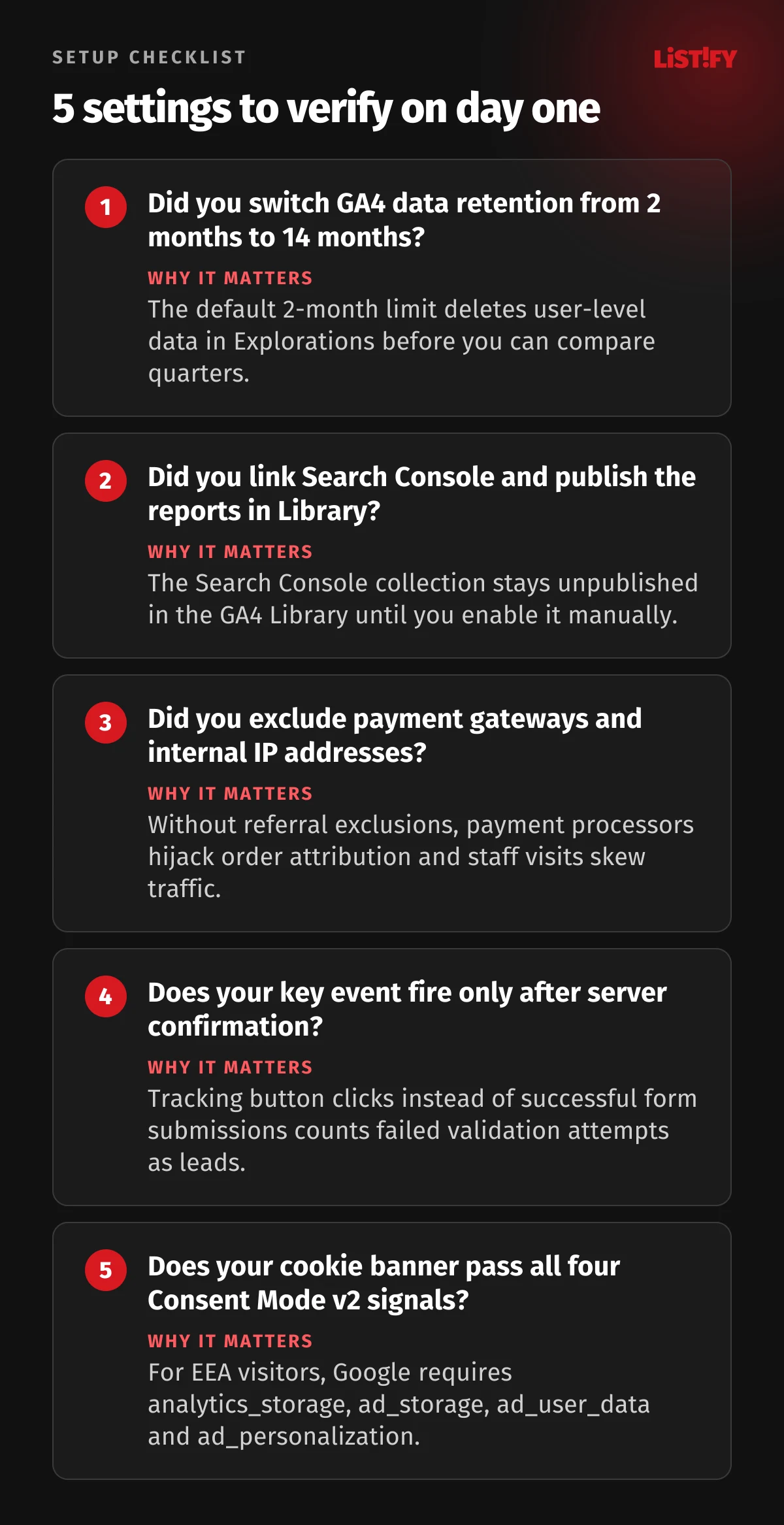
A fresh Google Analytics 4 property ships with conservative defaults. Leaving them untouched cuts off your historical exploration data after sixty days and credits your payment gateway for your best sales.
1. Change data retention from 2 months to 14 months
Under Data collection and modification > Data retention, a new GA4 property stores user-level and event-level data for only 2 months. As Google’s data retention documentation notes, standard aggregated reports keep working beyond that window, but custom funnels, pathing, and free-form tables in Explorations are wiped after two months unless you change the setting. Standard GA4 lets you extend retention to 14 months (26, 38, and 50 months require paid Google Analytics 360). Flip it to 14 months on day one.
2. Exclude payment gateways from referrals
When a customer leaves your checkout to pay on an external gateway (Stripe, PayPal, GoPay, Adyen, Comgate) and redirects back to your confirmation page, an unconfigured GA4 property treats the payment domain as the referring website that brought the sale. Your original ad or search campaign loses credit. Open your web stream settings, go to Configure tag settings > Show more > List unwanted referrals, and add every payment provider and single-sign-on domain you use. According to GA4 documentation, GA4 appends ignore_referrer=true to those return visits so the original traffic source stays intact.
3. Filter out internal traffic and staging environments
On a B2B website with a few dozen visits a day, your own sales team, editors, and developers can easily account for a fifth of all sessions. In your tag settings, define internal traffic rules by office IP address or CIDR range (which attaches traffic_type=internal to matching events) and activate the filter under Data filters. Per GA4 filtering rules, each property supports up to 10 data filters. Test the filter in Testing mode first: once a filter is set to Active, excluded data is never processed and will never be available in Analytics or BigQuery.
Just as important, never fire production analytics tags from localhost or preview deployments. In our own codebase, the tracking wrapper checks both the production environment flag and the visitor’s analytics consent before pushing anything to dataLayer:
export const ANALYTICS_ENABLED = process.env.NEXT_PUBLIC_ANALYTICS === ’1’;

export function trackEvent(event: string, params: Record<string, unknown> = {}): void {
  if (!ANALYTICS_ENABLED || !readConsent()?.analytics) return;
  window.dataLayer = window.dataLayer ?? [];
  if (GA_ID) gtag(’event’, event, params);
}
4. Register custom dimensions for event parameters
When you send a custom event to GA4, or rely on enhanced measurement events like file_download and form_submit, the event count appears in your reports right away, but parameters such as form_id, file_name, or calculator tier do not show up in standard tables. As Google’s enhanced measurement guide points out, you must register each parameter under Custom definitions as an event-scoped custom dimension before GA4 surfaces it in reports.
5. Fire lead key events only after server confirmation
Never trigger generate_lead on a raw button click. A visitor can click “Submit” three times with a missing required field or a typo in their email address and then close the tab. Fire the key event only inside the success callback after your server confirms the lead was saved to your database, or on a dedicated thank-you URL that cannot be loaded directly.
06Cookie consent, Consent Mode v2, and why GA4 never matches your accounting
Across the European Union and EEA, ePrivacy rules require prior opt-in consent before storing or reading analytics and marketing cookies on a user’s device. European internet users actively exercise that choice. According to Eurostat’s 2025 privacy figures, 55.2% of EU citizens aged 16 to 74 refused the use of their personal data for advertising purposes (and 63.9% in Czechia), while 36.5% changed their browser settings to prevent or limit cookies (47.4% in Czechia).
- Refused use of personal data for advertisingEU27: 55.2%Czechia: 63.9%
- Changed browser settings to limit cookiesEU27: 36.5%Czechia: 47.4%
- Use anti-tracking softwareEU27: 19.9%Czechia: 16.2%
Share of individuals aged 16 to 74 (within the 3 months prior to the survey). Source: Eurostat, isoc_cisci_prv20, 2025.
Why GA4 behavioral modeling doesn’t rescue most small and mid-sized sites
For traffic in the European Economic Area, Google requires four consent signals under Consent Mode v2: analytics_storage for analytics, plus ad_storage, ad_user_data, and ad_personalization for advertising measurement and remarketing. A common sales pitch claims that turning on Advanced consent mode lets Google’s AI automatically model and fill in all your missing visitors inside GA4.
For most B2B websites and regional online stores, that never happens. According to Google’s behavioral modeling prerequisites, GA4 only trains and activates behavioral modeling when a property meets all of the following thresholds at the same time:
- Advanced consent mode is enabled across all pages so cookieless pings are sent when consent is denied.
- The property collects at least 1,000 events per day with
analytics_storage=’denied’for at least 7 days. - The property has at least 1,000 daily users sending events with
analytics_storage=’granted’for at least 7 of the previous 28 days.
A typical company website or niche store with a few hundred visitors a day never reaches 1,000 consenting daily users. Its GA4 reports show strictly observed data from the subset of visitors who accepted cookies.
Three sources of truth and a 30-minute monthly review
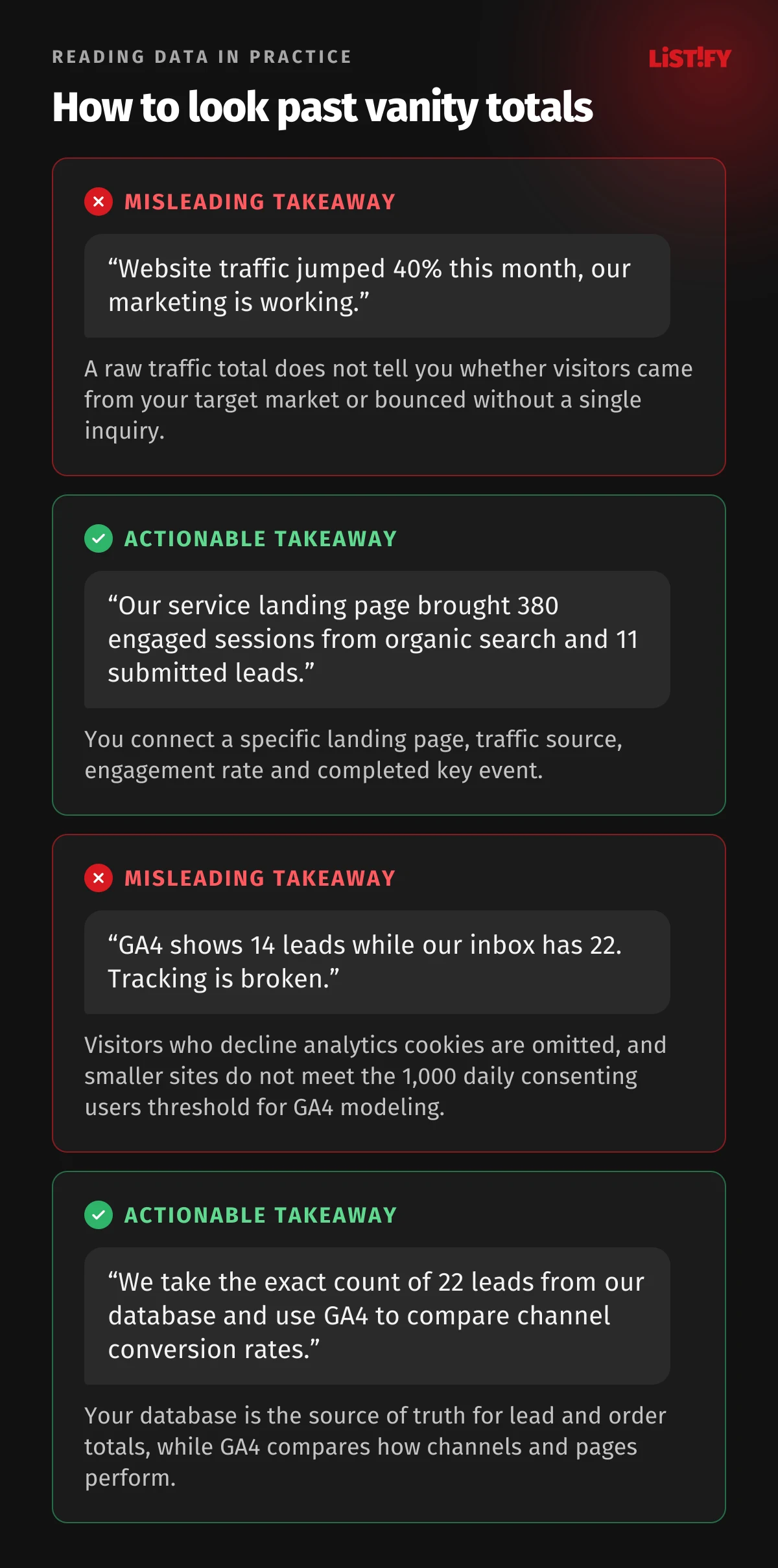
Once you accept that GA4 is a directional sample of consenting users rather than a billing system, you can stop chasing “missing” orders and run a clean 30-minute monthly review across three sources:
- Your website database, e-commerce backend, or CRM (accounting truth): How many real leads and paid orders arrived in total, how many came from new customers, and what gross margin they generated. Storing the landing page URL and UTM parameters directly on the server record when a user submits a form gives you lawful first-party attribution even when third-party analytics cookies were declined.
- Google Search Console (pre-click visibility): How impressions and clicks are trending on non-branded queries, which pages are losing click-through rate, whether core URLs remain indexed, and whether templates pass Core Web Vitals.
- Google Analytics 4 (on-site behavior and relative channel performance): Which channels and campaigns deliver the highest engagement rate and key event rate, where visitors drop off between
form_startandgenerate_lead(or betweenadd_to_cartandpurchase), and whether recent page changes improved completion rates.
When you are ready to translate those findings into next quarter’s budget allocation, continue with How Much to Spend on Online Marketing and B2B Lead Generation: How to Combine Paid Ads and SEO.
07Frequently Asked Questions (FAQ)
Why does Google Search Console show more clicks than organic sessions in GA4?
Search Console logs every click directly in Google Search results and is unaffected by your website’s cookie banner or ad blockers. GA4 only records a session after its tracking script loads in the visitor’s browser and analytics consent is granted. As Google’s integration guide notes, the two numbers measure different stages and will naturally differ.
What is a good engagement rate in GA4?
It depends on page intent and traffic source. Under GA4’s definition, an engaged session is any visit lasting longer than 10 seconds, viewing at least two pages, or triggering a key event. High-intent service pages and product pages from organic search commonly see 60% to 80% engagement rates, while informational blog posts or broad display campaigns sit lower. Comparing pages of the same type against each other is much more useful than chasing a single site-wide benchmark.
Why can’t I see Search Console reports in GA4 after linking both accounts?
The Search Console report collection is unpublished by default. In GA4’s left navigation, click Library, locate the Search Console card under Collections, open its three-dot menu, and select Publish (step-by-step in GA4 Help).
What causes Unassigned traffic in GA4 and how do I fix it?
Traffic falls into Unassigned when its UTM parameters don’t match any rule in Google’s Default channel group. The most common culprits are custom medium names (such as utm_medium=newsletter instead of utm_medium=email) or server-side events sent without a matching session_id.
How do I track visits from ChatGPT, Gemini, or Perplexity in GA4?
Google added a dedicated AI Assistant channel to GA4’s Default channel group that automatically captures referrals from ChatGPT, Gemini, DeepSeek, Copilot, and Grok (GA4 channel definitions). Visibility inside Google’s own AI Overviews and AI Mode is tracked inside Google Search Console.
Do I need a cookie banner if I only use Google Search Console?
No. Google Search Console does not set cookies on your website or run a tracking script in your visitors’ browsers. Prior opt-in consent under ePrivacy laws (such as Section 89(3) of Czech Act No. 127/2005 Coll.) is required only for tools that store or read information on the user’s device for non-essential purposes like analytics or advertising, such as GA4 or Meta Pixel.
What happens to GA4 data after 14 months?
Standard aggregated reports (such as Traffic acquisition or Pages and screens) remain available beyond 14 months. The 2-month or 14-month data retention limit applies to user-level and event-level data powering custom reports in Explorations. If you need unlimited raw event history, link your free GA4 property to Google BigQuery.
08Sources
- Eurostat: data analytics in enterprises by size class, isoc_eb_das
- Eurostat: privacy and protection of personal data by individuals, isoc_cisci_prv20
- Czech Statistical Office: ICT usage in the business sector 2025 (PDF, in Czech)
- Mediaguru: MNForce survey on digital campaign metrics tracked by companies (in Czech)
- Search Console Help: Search results Performance report
- Search Console Help: Page Indexing report
- Search Console Help: URL Inspection tool
- Search Console Help: Core Web Vitals report
- Google Search Central Blog: Search Generative AI performance reports in Search Console
- web.dev: Core Web Vitals metrics and thresholds
- Google Analytics Help: Search Console integration in GA4
- Google Analytics Help: Engagement rate and bounce rate in GA4
- Google Analytics Help: Enhanced measurement events in GA4
- Google Analytics Help: Key events and conversions in GA4
- Google Analytics Help: Data retention in GA4
- Google Analytics Help: Behavioral modeling for consent mode in GA4
- Google Analytics Help: Default channel group in GA4
- Google Analytics Help: Collect campaign data with custom URLs (UTM)
- Google Analytics Help: Filter out internal traffic in GA4
- Google Analytics Help: Identify unwanted referrals in GA4
- Google Analytics Help: Universal Analytics sunset and GA4
- Google Ads Help: EEA user consent and Consent Mode v2
- Czech Act No. 127/2005 Coll., on Electronic Communications, Section 89(3) (in Czech)
- Slovak Act No. 452/2021 Coll., on Electronic Communications, Section 109(8) (in Slovak)
Figures current as of October 27, 2026.