Website accessibility: why every user should be able to take part
An accessible website lets people find what they need and complete a task without unnecessary help from someone else. A readable homepage or a high automated score is only part of the picture. Check the entire enquiry, booking or purchase, including errors and confirmation. Start with the most important journey, fix barriers at their source and repeat the process when the website changes.
Imagine a customer who chooses a service, enters their details and cannot confirm an order because the final button only works with a mouse. The person cannot use the service independently. Accessibility includes structure, controls, language, media and the way a website announces changes.
This guide is for business owners, website managers and teams accepting work from a supplier. It includes a manual checking process and an illustrative repair example, not findings from an actual website audit. We checked the technical and legal sources on 28 October 2026. Legal scope must be assessed against the service actually provided and the relevant jurisdiction.
01Start with customer independence
Some people use a screen reader; others use magnification, a keyboard, voice control or a combination of tools. Designing for one imagined “typical disabled user” is unhelpful. Describe a specific task and identify the ways the interface allows people to complete it.
Clear headings, understandable errors and comfortable controls can also help someone with a temporary mobility limitation or in a difficult environment. These wider benefits do not replace the needs of disabled people. Visitors should not have to explain a condition before they can find a price, choose a date or receive confirmation.
Assess business value through actual task completion and customer feedback. Avoid promising a specific conversion increase in advance. Customer journey mapping helps identify important steps; accessibility testing asks whether people can complete them using different methods. Telephone assistance can provide useful support, but an unresolved form still needs attention.
02Separate technical standards from legal obligations
WCAG is a technical standard with testable criteria and conformance levels A, AA and AAA. For a new project, explicitly agree a target such as WCAG 2.2 Level AA, the pages and processes covered, and the verification method. Also establish which laws apply to the business.
In the EU, the European Accessibility Act covers selected products and consumer services, including e-commerce services within its scope. It is not a blanket rule for every business website. The framework exempts microenterprises providing services from its accessibility requirements. Do not turn that into a general exemption for every small company or product: check the relevant definitions, national implementation and actual operator.
Public sector websites are subject to a separate legal framework. Cross-border businesses should establish which national requirements apply to their activities. Describe a technical test precisely: its standard version, level, pages and states. A claim that a website meets the law needs a broader basis than a scanner showing a green result. Document unresolved scope questions.
03Choose pages, states and complete processes
For an initial review, list the main tasks: find a suitable service, understand its terms, send an enquiry, place an order, and change or cancel a booking where relevant. Define a starting point and a verifiable finish for each. Include arrivals from search directly on detail pages.
The sample should include different templates and shared components: navigation, search, consent dialogs, forms, accounts and embedded payment steps. Add empty results, errors, loading states and confirmation. Five nearly identical articles will not test a booking calendar. Record the device, browser, assistive technology where used, and date for each test.
Distinguish an initial search for barriers from a complete conformance evaluation. A limited sample helps plan work; it does not prove every page is free of barriers. Supply test accounts without real personal details. Test orders and payments in a designated environment so that a review does not create genuine purchases or commitments.
04Use structure that helps people find their place
W3C recommends meaningful structure and logically organised headings. Large bold text alone does not create an HTML heading. Similarly, a list should be represented as a list, rather than a collection of lines that only look like one. Screen reader users can navigate headings and page regions without listening to every repeated link.
“Returns conditions” tells people more than “Further information”. Links should make sense in context, and buttons should describe their actions. If several cards use “More”, make their purposes distinguishable to assistive technology too. Avoid filling accessible names with keywords intended for search engines.
Write instructions in the order people need them. Explain specialist terms, state pricing conditions and avoid relying only on position or colour: “use the green button on the right” may not help. Editorial checks should also cover the page language, document names and whether essential information is available only in a downloadable file.
05Make the whole journey work with a keyboard
Keyboard access is a basic requirement for ordinary web functions. Put the mouse aside and try opening navigation, selecting an option, changing a quantity and submitting a form. Tab and Shift+Tab generally move focus; other keys depend on the control. Custom components need a deliberate interaction model, not an arbitrary collection of shortcuts.
Focus is the current point of interaction. It must be recognisable, and its order should make sense for the task. Check sticky headers and consent banners too: the Level AA Focus Not Obscured criterion requires that a focused component is not entirely hidden by author-created content. In practice, keeping the entire control visible is a better design goal.
People must have an operable way out of embedded calendars and other components. A keyboard trap differs from a correctly implemented modal dialog that temporarily contains focus and can be closed. Start repairs with native HTML controls where suitable. Making a link look like a button does not change its behaviour or meaning.
06Check contrast, resizing and control size
Do not judge readability only on a large monitor in ideal lighting. Check actual text and background colours, selected states and error messages. Pale grey text that looks subtle in a design may be difficult to read. Colour must not carry essential meaning alone: identify an error with text and an appropriate connection to its field.
| Check | Technical reference point | What to test |
|---|---|---|
| Text contrast | WCAG AA: 4.5:1 for normal text, 3:1 for large text; exceptions apply. | Measure actual combinations, including errors and supporting text. |
| Text resizing | Resize to 200% without losing content or functionality, subject to the criterion’s exceptions. | Try navigation, inputs and long error messages. |
| Reflow | 320 CSS px width for vertically scrolling content; exceptions for necessary two-dimensional parts. | Check that ordinary text does not require horizontal scrolling. |
| Pointer target | WCAG 2.2 AA: 24 × 24 CSS px or an applicable exception. | Review small icons and spacing between controls. |
These are technical minimums within their respective contexts, rather than targets for comfortable design. Test intermediate zoom levels as well. Horizontal scrolling may be justified for a wide data table, but it should not make the surrounding form unusable. Important icons and component states also need a separate non-text contrast check.
07Explain form errors and preserve people’s work
Every input needs an understandable name programmatically associated with it. The W3C guide to labels explains why a placeholder alone is insufficient. It can disappear when someone starts typing, and it is not a reliable substitute for a label. Explain required information and expected formats before submission, rather than only after failure.
“Invalid value” makes people guess. Identify the problem and the correction alongside the relevant field; longer forms can benefit from an error summary with links. Form feedback must also be available to screen readers. Preserve valid information already entered. After success, clearly explain what happened and what the customer should expect next.
Include sign-in in the review. Do not unnecessarily block password pasting or password managers. Accessible authentication in WCAG 2.2 addresses assistance and alternatives to cognitive function tests. Review changes alongside the security design: making authentication easier to operate does not mean removing identity checks. Test an incorrect code and the route back to correcting it.
08Keep information available in media and documents
Alternative text communicates an image’s purpose in its specific context. The W3C alt decision tree distinguishes informative, functional and decorative images. Decoration may have empty alt text. A diagram needs an accessible explanation, rather than simply “infographic”. Provide a chart’s important conclusion and values in text or a table as well.
For video, consider player controls, captions and descriptions of important visual information where needed. The accessible media guide helps distinguish these requirements. Correct automatically generated captions before publication, especially names, numbers and specialist terms. A transcript is useful, but its presence alone does not address every accessibility requirement of a video.
Do not hide service terms or instructions exclusively in an image or scanned PDF. Request a separate structure and readability check for documents. Connect these rules with your routine for preparing website images and media. Editors need to know which material to supply and where to explain meaning that a photograph alone cannot communicate.
09Make dialogs and content changes predictable
When a modal dialog opens, people should understand where they are and how to close it. The W3C APG dialog pattern describes focus management inside the dialog and after closing. Test the actual consent panel, sign-in window and date picker. A visual overlay without matching behaviour can leave keyboard focus in the hidden background.
After adding a product to the basket, briefly changing a small number in a corner is insufficient feedback for some users. Status messages must be programmatically available to assistive technologies without unnecessary focus movement. Announce useful results proportionately; avoid interrupting someone after every typed character. Include success, empty results and failed requests in the test.
For animation, automatically changing content and time limits, assess whether visitors need a pause control or more time. Avoid adding movement that provides no useful information. Libraries and embedded tools expand the review scope. An external supplier’s logo does not demonstrate that its component works accessibly within your website.
10Build manual checks around a concrete task
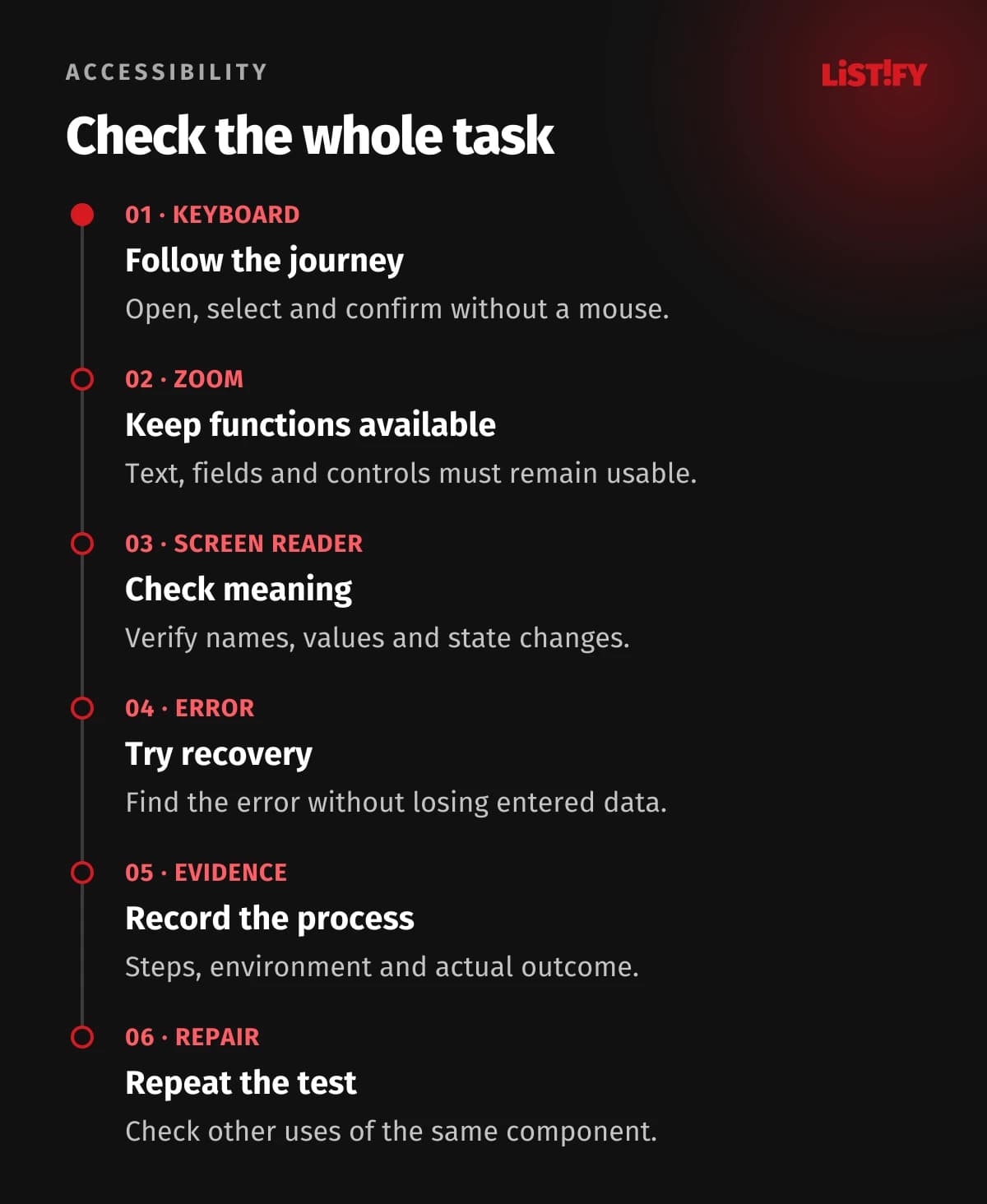
Automated tools help find some types of issue repeatedly. However, W3C states that a tool alone cannot determine conformance. Begin a practical test with a task such as “find the service, understand the conditions and send a test enquiry”. Record where progress stops, which information is missing and how another person can reproduce the problem.
- Complete the task using only a keyboard, including opening and closing every necessary dialog.
- Enlarge text and zoom the page. Check that controls, instructions and confirmation remain available.
- With an experienced screen reader user, check orientation, control names, values and state changes.
- Trigger an error, correct it and confirm that previously entered information is preserved.
- Record the steps, expected behaviour, actual result and test environment.
- After the repair, repeat the scenario and related journeys using the same component.
Screen reader testing involves more than reading a document from beginning to end. Experienced testers navigate headings, element lists and different interaction modes. A beginner can find useful issues, but may struggle to distinguish a website defect from unfamiliarity with the tool. Agree representative combinations of devices and assistive technologies, and involve real users.
11Prioritise barriers and verifiable outcomes
The following example is illustrative. A company offers consultations through a form. Its fictional review identifies three different barriers and one repeated issue. These are not measured findings from a client website or a universal priority order. Priority depends on whether someone can complete the task, how widespread the issue is and whether a usable alternative route exists.
| Illustrative issue | Effect on the task | Acceptance condition |
|---|---|---|
| Date selection only works with a mouse | A keyboard user cannot continue. | The person can select, change and confirm a date with the keyboard. |
| A submission error is not announced | A screen reader user does not know why the request failed. | The error, associated field and correction instructions can be found. |
| Zoom hides the confirmation button | The final action becomes unavailable. | The button remains available at the tested sizes. |
| The same unnamed control appears in multiple templates | Repairing one page leaves barriers elsewhere. | The shared component passes checks in every affected location. |
Assign an owner, affected pages and evidence to each issue. “Improve accessibility” is not an acceptance condition. For repeated elements, fix the shared component or editorial template. Track resolved warnings as supporting information; the more important question is whether a person who was previously blocked can now perform the intended action.
12Assign responsibility beyond launch
At handover, request the verified scope, known barriers, standard used and manual checks performed. Identify who approves new components and who responds to user reports. The channel for reporting a problem must itself be accessible. Accept feedback without requiring people to publicly disclose a diagnosis or other unnecessary personal information.
A panel for changing fonts or colours may provide a specific function, but installing it does not establish accessibility. It cannot be assumed to fix an incomprehensible process, an unsuitable image description or faulty calendar behaviour. Ask for evidence that the originally blocked task works, and continue improving the underlying content and implementation.
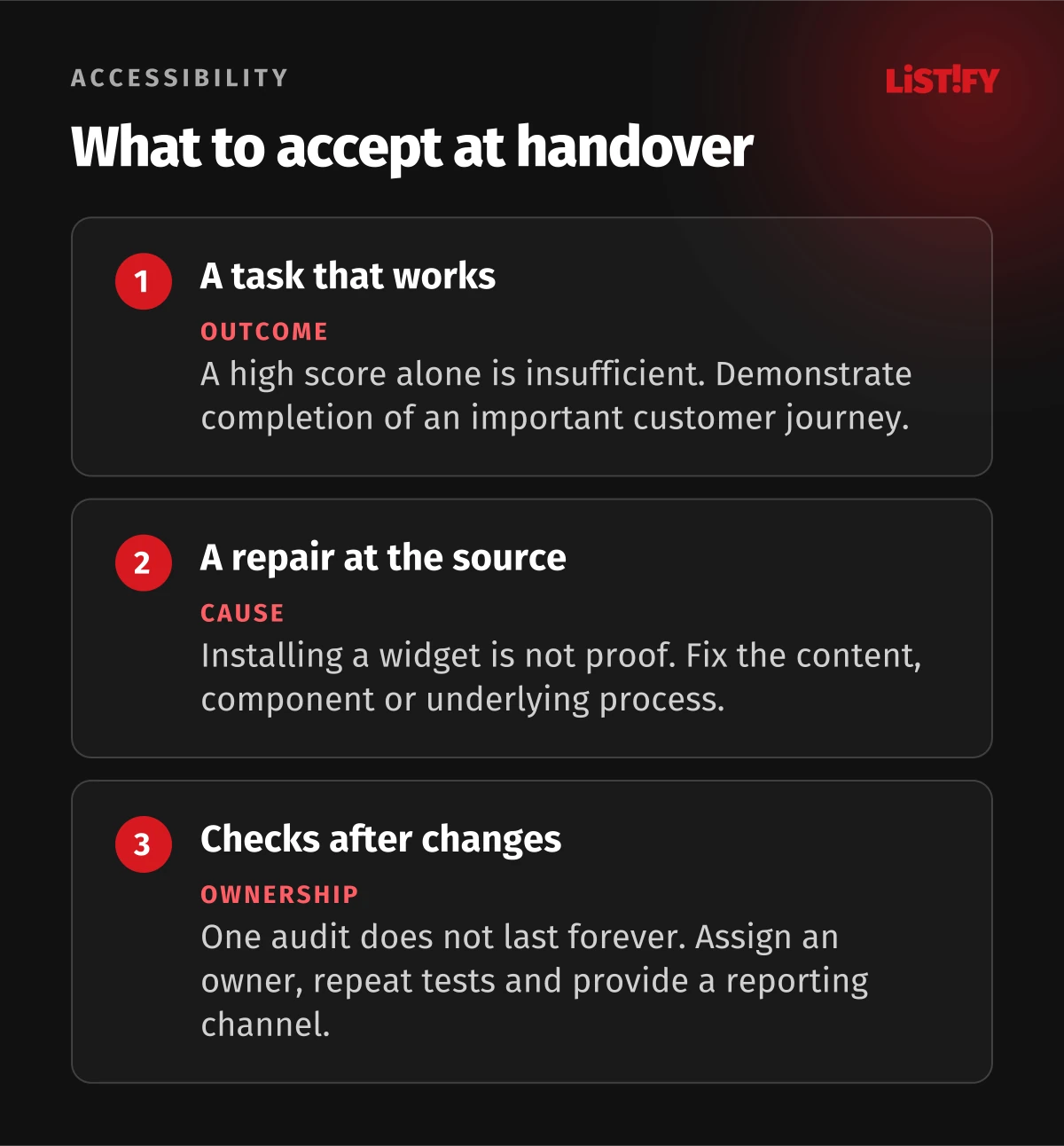
Include checks in regular website maintenance. After changes to a form, navigation, consent banner or external integration, repeat the relevant scenario. Give editors concise examples of good headings, links and media descriptions. Maintaining accessibility means assigning concrete work that can be checked and handed over to another person.
13Frequently asked questions
Does every business website have a legal accessibility obligation?
The answer depends on the applicable law, service and operator. The European Accessibility Act is not a blanket rule for every website, and national implementation matters. You can still set accessibility as a quality requirement where a particular statutory obligation does not apply.
Is WCAG 2.2 AA enough?
It is a precise technical target when you define the scope and verification method. Conformance alone does not answer every legal question, and the standard does not cover every individual need. Combine criteria checks with important task testing and feedback from real users.
Does an automated score of 100 mean there are no barriers?
No. A tool evaluates only what it can check. It may not determine whether text is meaningful, alternative text is appropriate or a person can complete a complex process. Use the result alongside manual checks, rather than as a certificate for the entire website.
Will an accessibility widget solve the problem?
Installation alone does not demonstrate a usable result. Verify its specific functions and compatibility with assistive technology. An inoperable form or missing meaning needs a design, code or content repair. Responsibility sits with the website management process, not the appearance of an icon.
Can we check everything ourselves without a screen reader?
You can make a useful first pass with a keyboard, zoom and content review. It does not cover assistive technology interaction or full conformance. For a complex website, involve an experienced tester and users with relevant needs. State precisely what your own review covered.
Does every image need long alternative text?
No. Decorative images may have empty alt text, functional images need their purpose identified, and informative images need their essential meaning communicated. Complex charts often need accessible detail alongside them. Choose the length according to the information needed, rather than a word quota.
How often should we check accessibility again?
Set a regular schedule suited to the website and its rate of change, and test important scenarios when their components change. A new calendar or payment module should not wait for an annual audit. Every repair needs a retest, and known barriers need a clear owner.
14Sources and the limits of this guide
Technical recommendations draw on WCAG 2.2 and related W3C WAI guidance. Easy Checks offers a starting point, while guidance on involving users supports test planning. Links beside individual claims distinguish normative criteria, explanatory documentation and legal sources.
The checking process, division of responsibility and illustrative repair table are editorial recommendations. This article contains no original barrier statistics, client results or conformance finding for a particular website. When accepting a project, request evidence that matches its actual scope and intended users.