Business Forms: Requirements, Validation and Completion Measurement
A form should help customers complete a specific task. Start with the reason for every question, then design entry, recovery and confirmation. A shorter form is not automatically better, and a green message does not prove that a request was accepted. This guide helps you prepare the brief, accept a working solution and monitor its outcome.
Our form design guide covers interface basics. Here we develop a project brief with justified questions, defined failure states and testable acceptance scenarios.
Use this approach for enquiries, registrations and complex applications, adapting it to purpose and data sensitivity. Tables, messages and calculations are illustrative, not measured website results.
01Start with the outcome the form needs to deliver
An enquiry form should help a customer ask for a service and give your team what it needs next. An initial consultation might need a contact address and a problem description; a complaint may need an order reference. Identical fields for both can mean unnecessary questions in one case and missing information in the other.
Before designing, define what the customer receives and what staff can do after completion. Assign ownership, a destination and a next action. On-screen confirmation, a system record and a salesperson’s reply serve different purposes. Improving the fields will not repair an unclear connection between these steps.
Consider the visitor’s intention too. A demonstration, informal enquiry and binding order need different explanations and review steps. Include an expected journey and an example usable result in the brief. Sales can assess the information needed to reply, the designer can assess the questions and the developer can assess system integration. Their feedback shares a starting point.
02Give every question a purpose and a point of use
GOV.UK uses a question protocol: a record of why each piece of information is requested and how it will be used. For a business, this provides a useful basis for discussion between sales, support and development. Start with the decisions you need to make, rather than copying a competitor’s fields.
| Question in an example enquiry | How the answer is used | Decision for the first step |
|---|---|---|
| Email address | Where to send the reply | Require it if an email reply is part of the service. |
| Phone number | Arranging a call | Ask when a call is selected; otherwise make it optional if appropriate. |
| What needs to be resolved | Routing to the right person | Ask a concise question with examples of helpful detail. |
| Billing address | Issuing an invoice | Usually collect later for an informal consultation. |
| Attachment | Clarifying an existing brief | Keep optional if the first response can be prepared without it. |
For each question, name an owner, specify who sees the answer, define a usable response and decide when it becomes unnecessary. Challenge “it might be useful”, but do not remove qualification questions indiscriminately. A short answer that prevents the customer from repeating their brief later may be valuable now.
An optional field must stay optional on submission and in the receiving system. Check that a missing phone number does not cause an unexplained CRM rejection. Otherwise, a hidden requirement has replaced the visible one. Test this case instead of completing every field in every test.
03Order questions around the task and keep branching understandable
Begin with something customers can answer without preparation. Technical specifications or precise budgets may be premature. Consider an “I do not know yet” option where your service can accommodate it. A forced guess creates apparently complete data that may be unreliable for preparing a proposal.
A short form can remain on one page. Multiple steps are useful when they separate different decisions or let people skip irrelevant questions. The number of screens does not guarantee a better result. When a branch reveals another question, its relationship to the previous answer should be clear. Changing an earlier choice must not leave a required field hidden in an inactive section.
Design the way back. People should review answers without repeating work. If changing the request type makes earlier answers irrelevant, explain what will be removed. Progress indicators must reflect the journey: do not promise a final step and reveal another compulsory page. Explain whether work can be paused and retrieved later.
04Separate the label, the hint and the example
A label identifies what to enter. A hint explains an unfamiliar requirement. An example demonstrates an acceptable format. These roles should remain understandable after the field is completed. An “Order reference” field might explain where to find that reference. A sample placed only inside an empty box disappears as soon as the person starts typing, removing the context they may still need.
W3C recommends associating labels with their controls. Visual proximity is not enough: a screen reader must identify the right name, and clicking the label should activate its control. A group of choices needs an overall question as well as a label for each possible answer.
Mark required and optional fields consistently. Keep essential instructions outside hover-only tooltips. Use customer language, not database terminology. “What would you like to resolve?” may be clearer than “Requirement specification”. Test whether people understand the expected detail. A short prompt can explain what to include and which sensitive information to omit.
05Make mobile entry and automatic completion easier
Test on a phone with the keyboard open. The active field, its error and the way to continue must remain reachable. A cramped message box makes reviewing a longer answer difficult. A phone field needs a suitable keyboard while still allowing a country code. A postal code or customer identifier is not automatically a number for calculation: it may start with zero or include letters.
MDN describes the autocomplete attribute as a way to identify the purpose of information, such as a name, email address or postal code. Developers should choose appropriate values and distinguish delivery and billing details where needed. Your acceptance check should confirm that completion works and that the customer can correct the result.
Allow pasting. If a company or address lookup fills fields, provide correction and a fallback for an unavailable lookup service. A late response must not overwrite newer manual edits. Test long names, accents, international numbers and enlarged text. Our mobile-first guide covers the wider small-screen experience.
06Include keyboard operation in the brief
The task must be possible without a mouse. Move through fields, choices, file selection, the back action and submission using the keyboard. The order should make sense, and the current focus should be visible. A dropdown that works only with clicks is incomplete even if its appearance matches the design perfectly. Prefer familiar controls unless a custom interaction solves a specific need.
Check with a screen reader as well: how does it announce required input, hints, groups of choices and errors? W3C explains accessible associations for instructions, including aria-describedby. A business brief need not prescribe every attribute, but it should require demonstrated behaviour with the assistive technologies relevant to the audience.
Do not rely on colour, icons or disappearing notifications for essential information. Submitting and confirmation states must reach people who cannot see changes. Direct attention to each new step and restore focus sensibly after a dialog closes. Test these transitions rather than merely checking for accessibility attributes.
07Time validation around the work people are doing
A red error after the first character of an email address arrives before the person has had a chance to answer. A useful starting point is to check information when someone attempts to continue or submit. Add feedback during entry where it helps a specific task, such as approaching a text limit. Once an error has been reported on submission, feedback can show that the correction has worked.
The GOV.UK validation pattern recommends checking on continue or submit and explicitly advises against automatically validating whenever someone leaves a field. Treat this as a considered starting point that can change with evidence from your users. Leaving a field does not necessarily mean the answer is finished.
For remote checks, distinguish “checking”, “checked” and “checking unavailable”. An outage does not invalidate the answer. An email-format tick proves neither mailbox existence nor control. If you require a confirmation code or link, design for delays, resending and address correction. These checks need distinct explanations.
08An error message should make a specific correction possible
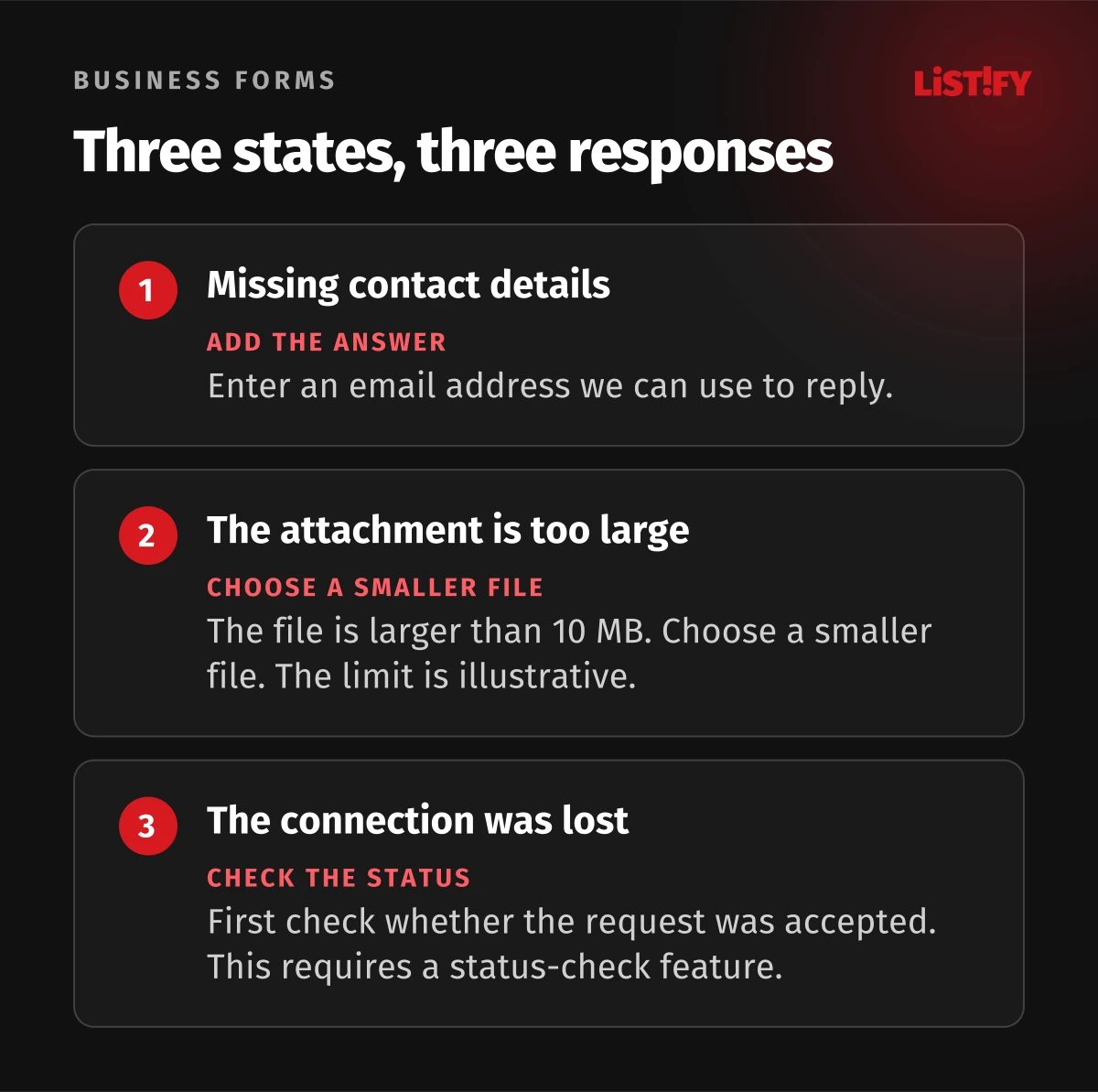
Write messages for missing answers, incorrect formats, exceeded limits and conflicts with the current service state. “Invalid value” does not explain a repair. Name the information using the same words as the label, then explain what needs to change. For an illustrative attachment limit, this could be “The file is larger than 10 MB. Choose a smaller file.” The number must match the actual configuration.
GOV.UK’s error message guidance recommends retaining both correct and incorrect answers. Combine messages at the affected fields with a linked summary, especially for longer forms. People should not have to scan the entire page for one red border. Correcting one field must not erase values in the others.
Describe system outages separately: customers cannot fix them by changing their phone number. A lost connection does not prove nothing was received. Design a route for that uncertainty. Avoid jokes at the customer’s expense and technical traces that expose internal application information.
09The server decides what to accept, and security needs other layers
MDN explains that browser validation can be bypassed. The server must therefore check required information, permitted values and the rules of the operation again. Require consistency between the two layers: the form should not offer a value that the server then rejects without a useful explanation.
Format validation does not replace authorization, secure storage or protection against abuse. A correctly written order number is not proof that someone is allowed to view that order. Request limits, access to records and safe text processing belong in a separate technical review. Do not shift these responsibilities onto customers through unnecessarily restrictive rules for ordinary names.
Agree proportionate protection against automated spam and a route for handling false positives. Verification should not trap an ordinary visitor in an impossible loop. After introducing a protection mechanism, repeat the keyboard, assistive-technology and mobile-network checks. A stricter solution that also blocks relevant customers needs fixing just as a spam filter that lets abusive submissions through does.
10Plan attachments and privacy before the first submission
Before file selection, show supported formats, the number of attachments allowed and the size limit. After selection, display the filename, upload status and a way to remove it. Drag and drop can provide a shortcut, but there must be an accessible alternative. If one attachment fails, preserve the rest of the work and explain whether that file needs to be selected again.
OWASP recommends layered checks for uploaded files. Neither a filename extension nor a browser-supplied type proves that the content is safe. Depending on the use, controls include size limits, inspection of the actual type, safe storage and access restrictions. Accept formats that the receiving team can genuinely process.
Explain who uses the information and link to details. Avoid unnecessary sensitive documents. Consider shared-device risks before saving drafts and set their retention period. Separate request handling from additional marketing, assessing the legal basis for the actual purpose. These are design principles, rather than a universal legal consent template.
11Submission must lead to a known state
Name the button after its consequence: “Send enquiry” communicates more than “OK”. Where mistakes have a significant impact, provide an opportunity to review answers before sending. Show progress during processing. Blocking repeated clicks can help in the interface, but preventing duplicate acceptance may also require server-side handling appropriate to the operation.
W3C recommends communicating the submission outcome, including successful completion. Show success after the relevant acceptance has been confirmed, rather than immediately after the click. Explain the next step, provide a reference where available and state how to make contact. Any promised response time must be agreed with the operating team, rather than copied from an appealing template.
A request may be accepted even if the server response never arrives. Provide a status check or safe retry. Delayed confirmation email is a separate case. Verify internally that the right person receives the request: a thank-you page alone proves neither inbox delivery nor customer resolution.
12Measure completion and accept the form using realistic scenarios
Define your events: a view, the first meaningful interaction, an attempt to submit, an error and confirmed acceptance. Reloading a thank-you page must not create another enquiry in the report. Distinguish the form and its version, device and general error category. Keep field values, message contents, sensitive attachment names and personal data in URLs out of analytics.
A field identifier and a predefined problem code are usually enough for diagnosis. Inspect automatic collection and session-recording tools too, because they may capture text outside your planned events. Illustrative calculation: 100 measured starts lead to 60 confirmed acceptances, giving 60%. Without understanding measurement gaps, request quality and traffic sources, that figure proves neither form quality nor future revenue.
| Acceptance scenario | What people should see | Where to verify the result |
|---|---|---|
| Valid submission | Clear confirmation and next step | An accepted record in the destination system. |
| Several incorrect fields | A list of repairs and retained answers | Keyboard operation and a screen reader. |
| Phone with keyboard open | Reachable field, error and next action | A real phone, rather than a narrow desktop window. |
| Unsupported attachment | A specific reason and a recovery route | Other answers and files remain available. |
| Interrupted response | An honest state and safe next action | Server acceptance and duplicate handling. |
| Analytics | Acceptance event without field contents | Test records in the measurement tool. |
Ask someone unfamiliar with the design to complete a task and observe hesitation without coaching them. When comparing versions, look beyond accepted requests to usable contact details, spam and the amount of information staff must request later. A randomly assigned experiment can help estimate the effect of a change; a simple before-and-after comparison may be distorted by a different campaign.
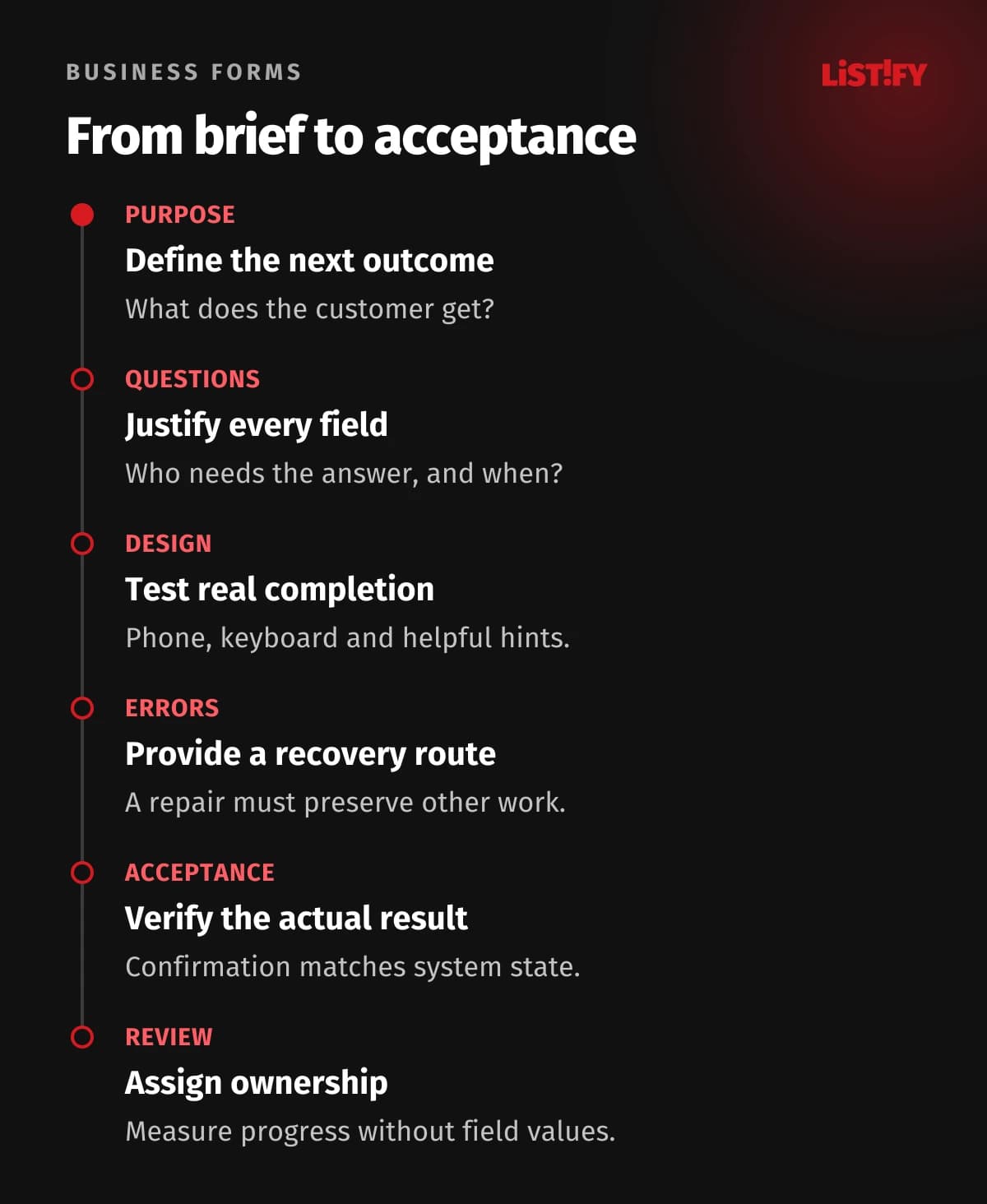
Assign the form to a named owner. Repeat the acceptance checks after changes to fields, integrations, analytics or spam protection. Include this operational check in monthly website care. Turn findings into specific repairs and verify them afterwards, rather than stopping at a chart of visits.
13Common questions about form design and validation
How many fields should an enquiry form have?
As many as you need for a clearly defined next step. There is no universal ideal number. Explain the use of each answer and consider whether you need it now. Removing necessary context can create more work for the customer during later correspondence.
Is one page better than several steps?
A short enquiry usually does not need splitting. A more complex process can be divided around decisions and branches. Test going back, retaining answers and understanding progress. Decide from realistic tasks, rather than the number of screens alone.
Should an error appear when someone leaves a field?
Not necessarily. Checking when someone continues or submits is a reasonable starting point. Add feedback during entry when there is evidence that it helps, such as a limit on a long answer. Leaving a field does not necessarily mean the answer is complete.
Can we use the browser’s built-in validation?
It can provide a useful foundation. GOV.UK replaces it with its own tested components within its design system; that is not a prohibition for every website. If you replace native behaviour, provide accessible errors and attention management. Server-side checks remain necessary either way.
Does a correctly formatted email prove the mailbox exists?
No. A format check only verifies the chosen syntax rules. Deliverability and control of the mailbox are separate questions. Where the process needs verification, provide the appropriate confirmation and handle missing codes, delays and corrections to the address.
Can we record errors for individual fields?
Yes, but design events around a field identifier and a general error code without the entered value. Inspect automatic collection, URLs and session-recording tools as well. Not every report needs to identify an individual customer.
How do we know a form is ready to launch?
A customer can complete an ordinary task and recover from an error, and a verified submission reaches its destination system. Test keyboard access, phones, attachments and uncertain submission. Assign ownership of the response and operational checks. An attractive initial state is not sufficient.