Proton VPN Browser Extension for Chrome and Firefox: Setup, Free Plan and Limits
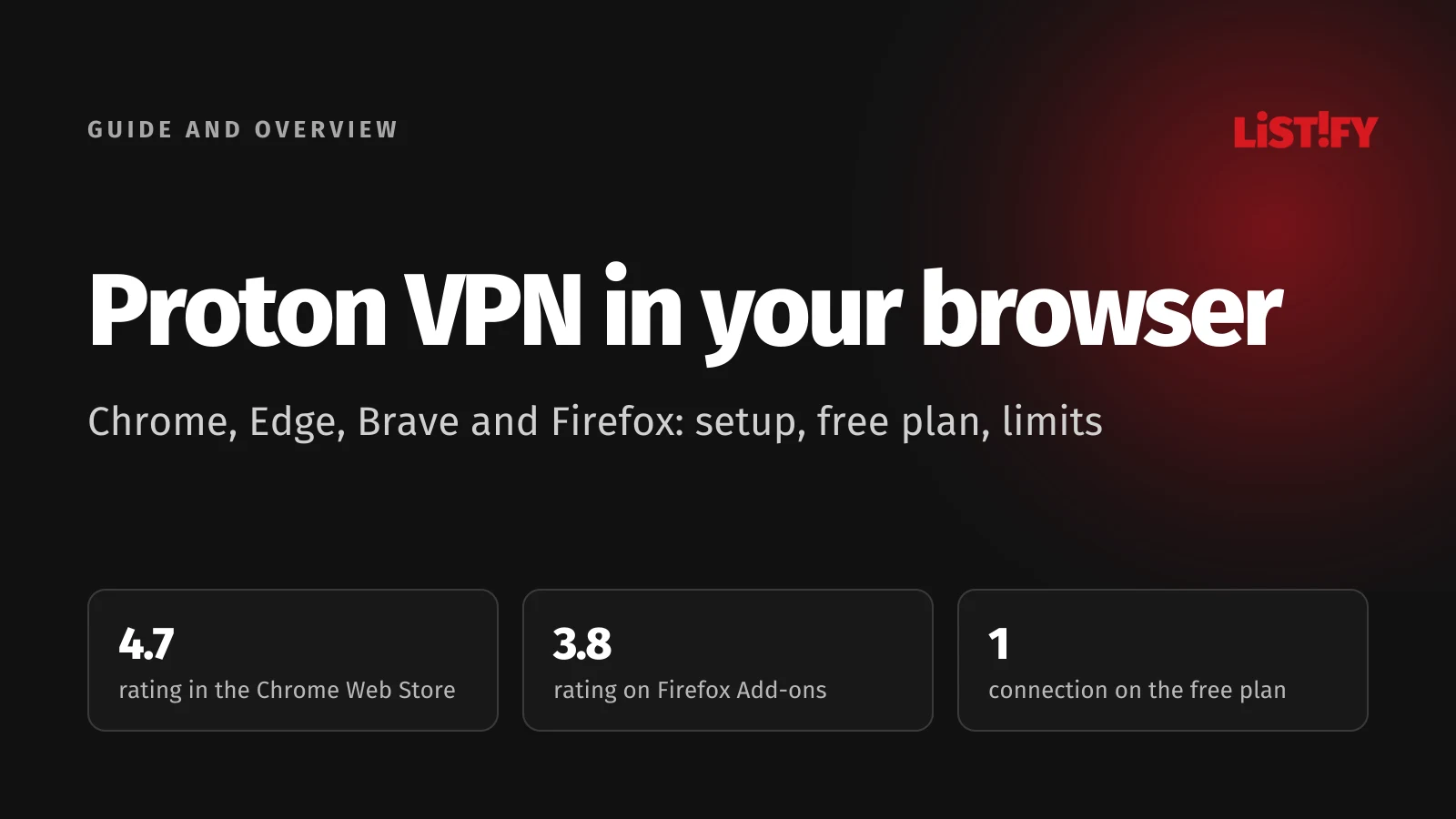
The Proton VPN extension is free for Chrome, Firefox and browsers built on them, such as Edge, Brave, Opera and Vivaldi. It only protects traffic inside the browser, though, not your whole computer. You install it from the Chrome Web Store or Firefox Add-ons, sign in with a Proton account and click Quick Connect. On the free plan you get one connection to a server Proton picks for you in one of 10 countries. Secure Core, split tunneling and streaming are paid features. Chrome users rate the extension 4.7 out of 5, Firefox users 3.8. Current as of October 19, 2026.
A browser extension is the quickest way to try Proton VPN. You don’t need admin rights, nothing gets installed on the system, and setup takes a few minutes. It’s handy on a work laptop where you aren’t allowed to install apps, or when you want one browser in a different country from the rest of your computer. It does have limits, and you should know them before you trust it with your privacy.
We haven’t run a long-term test of the extension ourselves. This guide is based on Proton’s support pages (Proton VPN), the extension’s listings in the Chrome Web Store and on Firefox Add-ons, which we checked on October 19, 2026, the extension’s source code on GitHub, and help pages from Google, Microsoft and Mozilla. Our Proton VPN links are affiliate links: if you subscribe through them, we earn a commission at no extra cost to you. For our overall verdict on the service, see our Proton VPN review.
01Proton VPN extension vs app: what it protects and what it doesn’t
Proton puts the main difference plainly: the apps protect all traffic entering and leaving your device, while the extension only protects traffic inside your browser (Proton VPN). System updates, a torrent client, a standalone messaging app or another browser keep going straight through your internet provider.
| Feature | Browser extension | Proton VPN app |
|---|---|---|
| What it protects | Only the browser it’s turned on in | The whole device |
| Other apps and other browsers | Not protected | Protected |
| How it encrypts traffic | Over HTTPS, a separate connection for each browser | One VPN tunnel for all of the device’s connections |
| Installation | From the extension store, no admin rights | Installed on the system |
| Kill switch and NetShield | Not listed among the extension’s features | Kill switch in all apps, NetShield blocks ads |
| Counts toward your connection limit | Yes, each browser separately | Yes, each device |
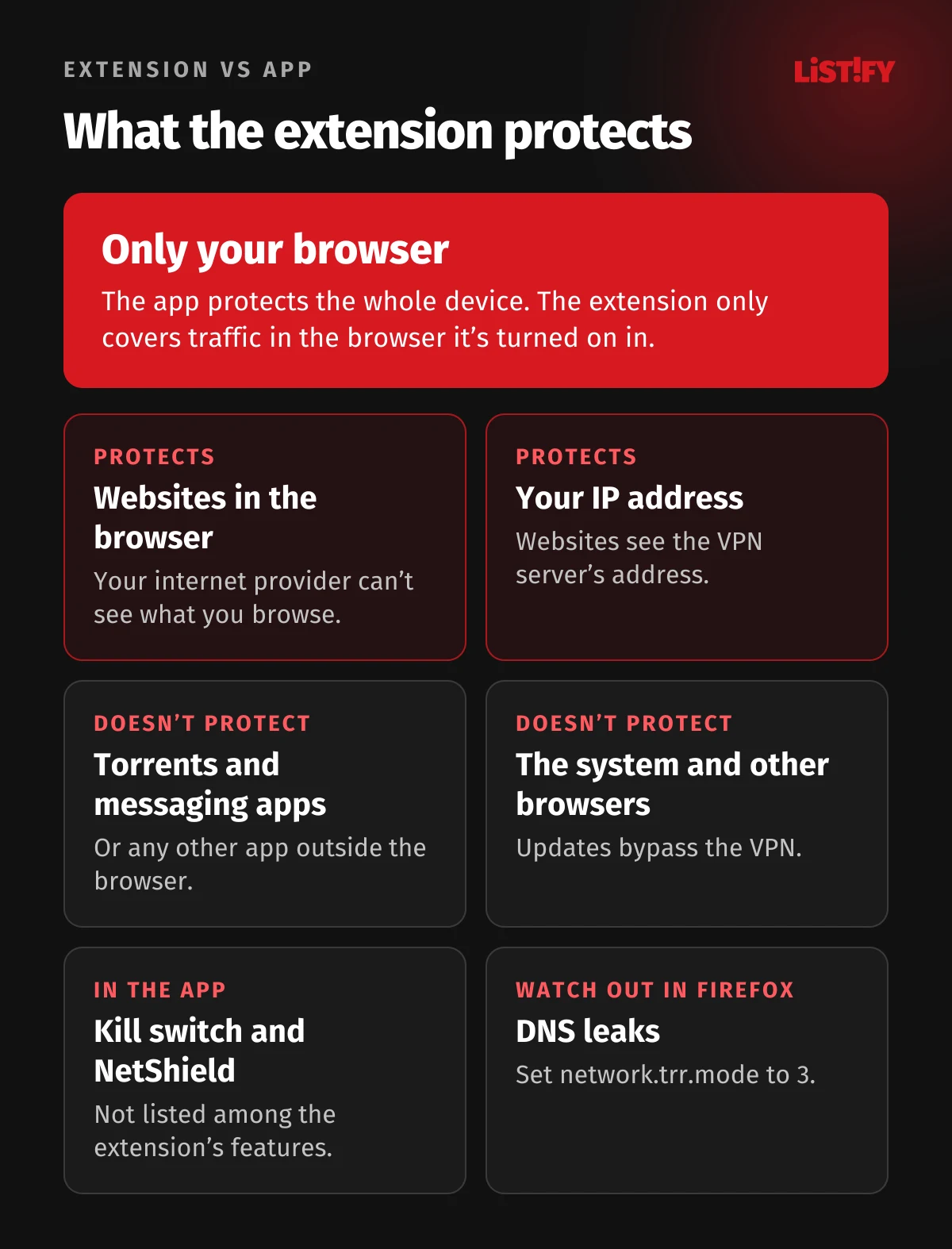
An extension also has to work within the browser’s rules. Proton lists where its protection falls short (Proton VPN): an email client built into the browser sends mail over SMTP and IMAP outside the extension, data sent before the extension finishes loading at startup isn’t protected, and experimental browser features sometimes ignore the proxy settings. Because each browser running the extension opens its own HTTPS connection, you’re slightly more exposed to browser fingerprinting than with the app. Proton recommends the full app if security is a high priority for you. Our guide to setting up a VPN on Windows and Mac walks you through it.
Running the extension and the app together
You can run both at once. The whole device then goes through the app’s server, and browser traffic also goes through the extension’s server, which gives you a double VPN (Proton VPN). Proton offers a practical example: the app keeps your computer on the fastest server nearby while you stream a show from another country in the browser. Keep in mind that this uses two connections from your limit, so it won’t work on the free plan with its single connection.
02How to add Proton VPN to Chrome
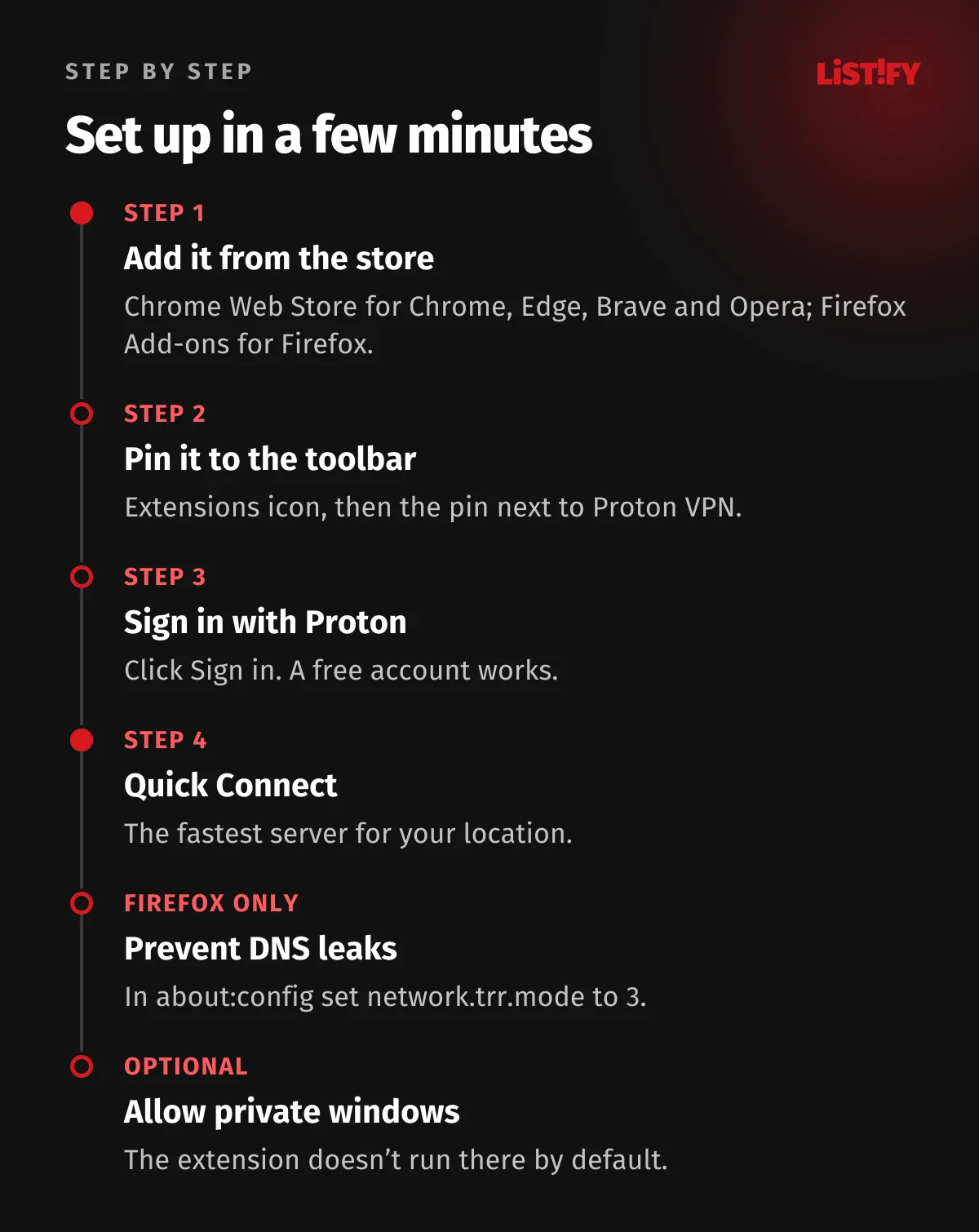
- Open the extension’s page in the Chrome Web Store, or search the store for “Proton VPN.” The extension is called Proton VPN: Fast & Secure, and the publisher is Proton AG.
- Click Add to Chrome and approve the permissions with Add extension (Google).
- Click the Extensions icon in the toolbar and the pin icon next to Proton VPN, so the extension stays on your toolbar (Proton VPN).
- Open the extension, click Sign in and enter your Proton account details. If you use two-factor authentication, enter the code too.
- Click Quick Connect, or pick a country and click Connect. Quick Connect takes you to the fastest server for your location; picking a country connects you to the fastest server there. Use the arrow next to a country to choose a specific city or server (Proton VPN).
The extension’s interface is in English, and the Chrome Web Store lists English as its only language (Chrome Web Store). The extension also has a button to create a Proton account (GitHub). What the free plan offers outside the browser is covered in our article on Proton VPN Free.
Proton VPN on Edge, Brave, Opera and Vivaldi
The Chrome extension works in every Chromium-based browser, and Proton names Edge, Brave, Chromium, Opera and Vivaldi. You need a browser based on Chromium 108 or later, which means Edge 108 or later (Proton VPN). You always install it from the Chrome Web Store:
- Microsoft Edge: in the Chrome Web Store, select Get on the extension. If you haven’t allowed extensions from other stores yet, you may see a dialog to allow them; select Allow, then confirm with Add extension (Microsoft).
- Brave: no extra steps, it installs Chrome Web Store extensions directly (Proton VPN).
- Opera and Vivaldi: in the Chrome Web Store, click the add button (it may carry your browser’s name) and follow the prompts (Proton VPN).
03Proton VPN Firefox extension: setup and DNS leaks
- Open the extension’s page on Firefox Add-ons, or search the site for “Proton VPN.”
- Click Add to Firefox and follow the prompts (Proton VPN). Besides its required permissions, the extension asks for two optional ones: control of the browser’s proxy settings and access to your data on all websites (Firefox Add-ons). If a permission is missing, the extension reports that it can’t control the browser’s network settings (GitHub).
- Click Sign in and then Quick Connect.
Firefox has one catch. By default it doesn’t route DNS queries through the HTTPS connection to Proton’s VPN servers, so your internet provider can still see which domains you visit (Proton VPN). If you only use the extension for streaming, that doesn’t matter. For privacy, though, type about:config into the address bar, accept the warning, search for network.trr.mode, click the edit icon, set the value to 3 and save. According to Proton, running Firefox in a private window also prevents DNS leaks, but you have to allow the extension there first (see below).
The same extension works in Firefox-based browsers such as LibreWolf and Waterfox, as long as they’re built on Firefox 109 or later (Proton VPN). Firefox Add-ons lists it for desktop Firefox only, not for Firefox on Android (Firefox Add-ons API).
04How to use Proton VPN in incognito and private windows
Neither Chrome nor Firefox runs extensions in private windows by default, so Proton VPN protects nothing there until you allow it (Proton VPN, Mozilla). Here’s how:
- Chrome: at the top right, select More › Extensions › Manage extensions, select Details on Proton VPN and turn on Allow in incognito (Google).
- Firefox: click the menu button, choose Extensions and themes › Extensions, open Proton VPN and next to Run in Private Windows select Allow. Firefox also asks about this when you install the extension (Mozilla).
- Edge and Brave: open the extension’s Details and turn on Allow InPrivate (Edge) or Allow in Private (Brave) (Proton VPN).
Chrome won’t let you add extensions while browsing in incognito mode, so install it in a regular window first (Google).
05Proton VPN extension free vs Plus
Until August 2024 the extension was for paying customers only. Since then Proton has offered it to everyone with a Proton account, including free users (Proton VPN). The features differ, though:
| Feature | Proton VPN Free | Proton VPN Plus |
|---|---|---|
| Price | Free | €71.76 for the first 2 years with the partner offer (€2.99 a month, about CZK 1,747 in total) |
| Simultaneous connections | 1 | 10, each browser with the extension counts separately |
| Countries | 10, Proton picks the server for you | 140+ countries, choose a country, city or server |
| Changing servers | Random, with a 45-second cooldown, then 10 minutes | Any time |
| Streaming | No | Yes |
| Secure Core | No | Yes |
| Split tunneling by website | No | Yes |
| Data and speed limits | None | None, servers up to 10 Gbps |
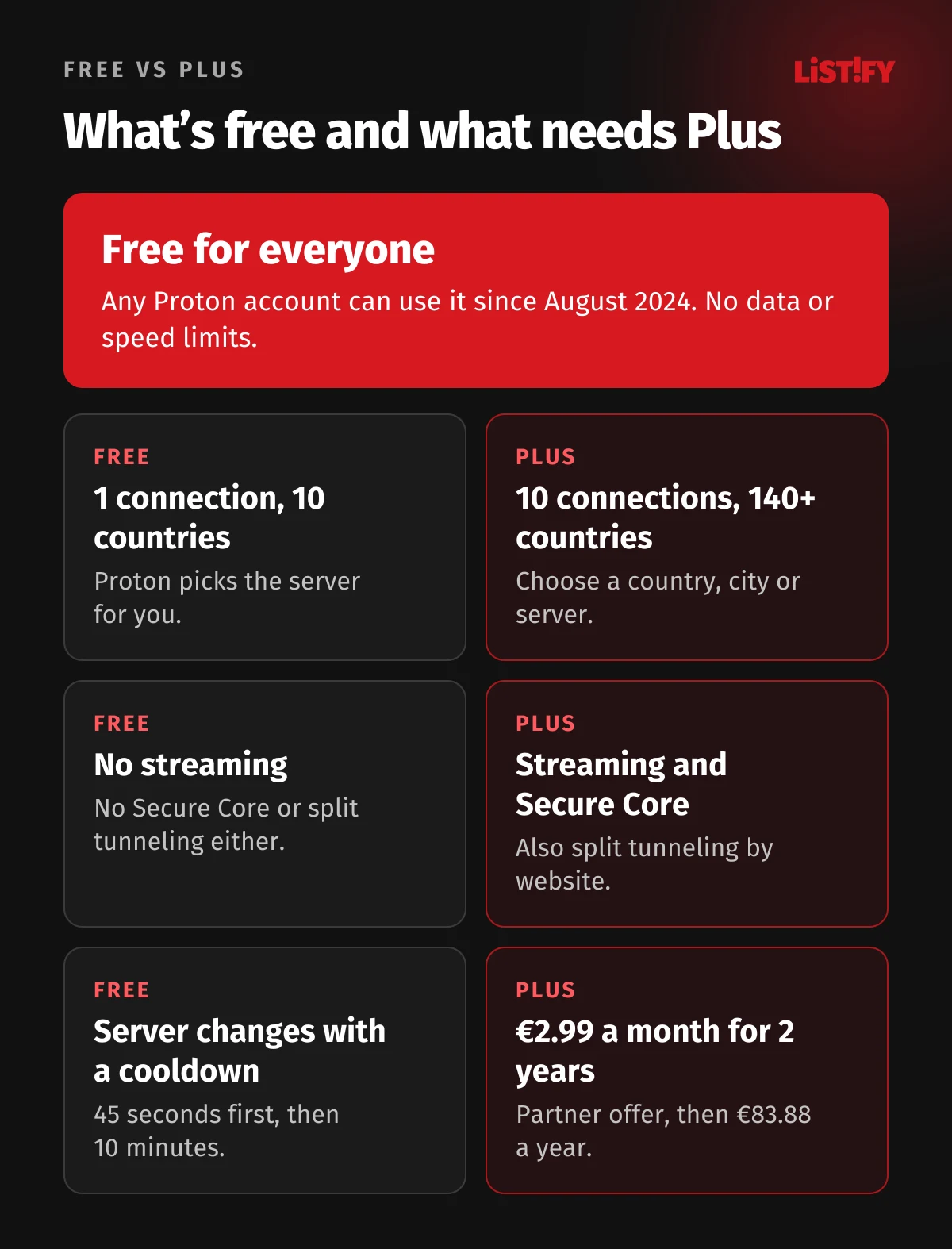
The free servers are in the Netherlands, Japan, Romania, Poland, Norway, Switzerland, Singapore, Mexico, Canada and the US. Proton first connects you to the fastest of them and picks the next one at random (Proton VPN). That’s fine for everyday browsing, but not for Netflix from another country: Proton only allows streaming through the extension on paid plans (Proton VPN).
Plus costs €9.99 a month on the monthly plan. With the partner offer you pay €71.76 for the first 2 years, which works out to €2.99 a month (partner checkout price on October 19, 2026), 70% less than the monthly plan. After 24 months, Plus renews automatically at €83.88 a year, about CZK 2,042 (Proton VPN). Proton’s prices include VAT, and the koruna amounts are our conversion at the Czech National Bank rate (CNB). One subscription covers both the apps and the extension. For every plan and renewal price, see Proton VPN price; the 30-day refund is explained in how to cancel Proton VPN and get a refund.
06Extension features: Secure Core, split tunneling and auto connect
You’ll find the advanced features under the extension’s Features icon (Proton VPN).
Secure Core
Secure Core routes your traffic through two servers. The first is under Proton’s direct control and sits in a privacy-friendly country (Switzerland, Sweden or Iceland) (Proton VPN). Once you flip the switch, the server list shows exit countries marked with a double arrow. It’s a paid feature (Proton VPN).
Split tunneling by website
In the Windows or Android app you exclude whole apps from the VPN; in the extension you exclude individual websites (Proton VPN). In the default Exclude mode, the sites you add bypass the VPN and everything else stays protected. Include mode works the other way around: the VPN protects only the sites you add. Subdomains are excluded along with the site unless you uncheck Also add subdomains (Proton VPN). That’s handy for online banking you’d rather not route through a foreign server. According to text in the extension’s code, Brave may leave DNS requests unprotected while Include mode is active (GitHub).
Auto connect
With Auto connect on, the extension connects every time you open the browser. If you last used Quick Connect, it uses Quick Connect again. If you picked a country, it connects to the fastest server there; if you picked a city or server, it connects to exactly that one (Proton VPN). Quitting the browser completely ends the session. Closing one window while the browser keeps running doesn’t.
WebRTC leak protection
Video calls in the browser use WebRTC, which can reveal your real IP address to a website even when you’re on a VPN. The extension includes WebRTC leak protection, and in the source code it’s on by default. Its description in the extension warns that it may affect video calls or live streaming on some sites (GitHub). If Google Meet or Teams won’t work in the browser, try turning it off temporarily.
The extension doesn’t currently support Tor servers or dedicated IP addresses (GitHub). Proton doesn’t list a kill switch or the NetShield ad blocker among the extension’s features; it describes them for the apps (Proton VPN).
07Is the Proton VPN extension safe?
The extension’s source code is public on GitHub under the GPL 3.0 license, and the repository was last updated on October 9, 2026 (GitHub). The Chrome Web Store says the publisher, Proton AG, has a good record with no history of violations, and Proton AG has identified itself there as a trader under the EU definition (Chrome Web Store). In Firefox, the required permissions are showing notifications, reading and changing privacy settings, accessing browser tabs and accessing data on Proton’s account sites (Firefox Add-ons).
The main limits come from how extensions work. The extension only protects the browser, it can’t replace a kill switch, and it gives away a bit more of your browser fingerprint (Proton VPN). It stores a cookie so you don’t have to sign in every time. If you’d rather it didn’t, uncheck Keep me signed in when you sign in, and manage active sessions in the security settings at account.proton.me (Proton VPN). For a general look at what a VPN does and doesn’t hide, read what is a VPN and how does it work.
08Chrome Web Store and Firefox Add-ons ratings
- Chrome Web Store4.7
- Firefox Add-ons3.8
As of October 19, 2026: 4.6K ratings on Chrome, 1,010 on Firefox. Source: Chrome Web Store, Firefox Add-ons.
On Chrome the extension has 2,000,000 users and a 4.7 average from 4.6K ratings (Chrome Web Store). On Firefox, it has 150,499 users, and its 3.8 average comes from 1,010 ratings (Firefox Add-ons). Both stores carry the same version, 1.3.6, from August 2026. Google notes that ratings are updated daily and may not reflect the most recent reviews.
- 5 stars59.9%
- 4 stars7.7%
- 3 stars6.2%
- 2 stars4.3%
- 1 star21.9%
Shares are our calculation from the counts on the add-on page (605, 78, 63, 43 and 221 ratings). Source: Firefox Add-ons.
Firefox ratings are polarized: three in five ratings are five stars, and more than one in five are one star. We didn’t analyze the reasons behind individual reviews. If the extension doesn’t behave as expected, start with the steps in the next section.
09Proton VPN extension not working: what to try
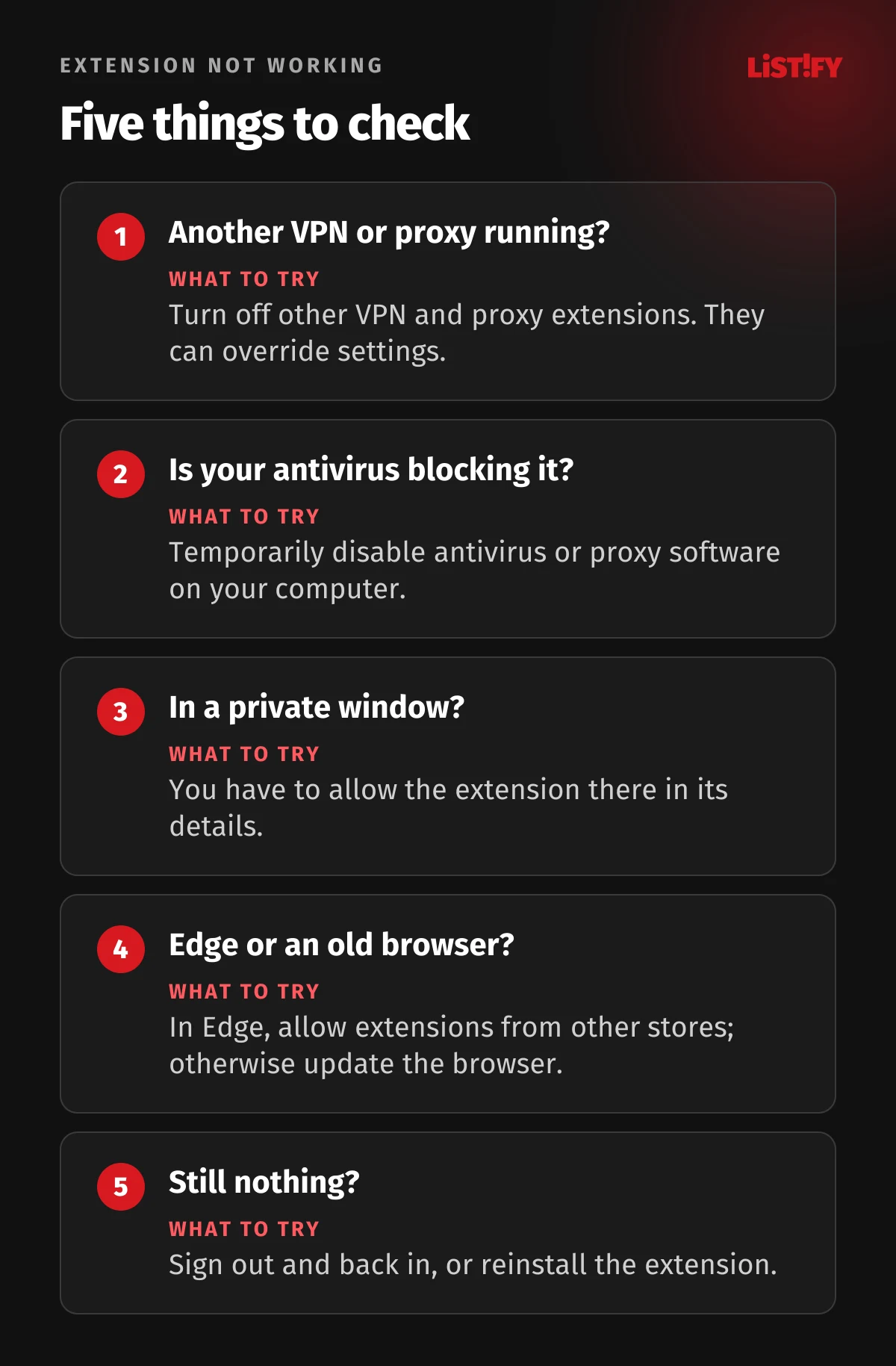
- Another VPN or proxy extension: other extensions can override the browser’s settings. Proton VPN detects this and shows a warning (Proton VPN). Turn off other VPN and proxy extensions.
- Antivirus or a proxy on your computer: according to the extension’s own messages, these can block the connection. Disable them temporarily and try again (GitHub).
- Not working in a private window: you have to allow the extension there, as described above.
- Edge won’t install it: allow extensions from other stores (Microsoft).
- Outdated browser: you need Chromium 108 or Firefox 109 or later (Proton VPN).
- Can’t change servers on Free: after the first change you wait 45 seconds, then 10 minutes after each one (Proton VPN).
- Video from abroad won’t play: streaming only works on paid plans (Proton VPN). On Plus, try another server in the same country.
- Server not found or a connection error: reconnect, or sign out and back in, which is what the extension’s own error message suggests (GitHub). If that doesn’t help, reinstall the extension.
10Proton VPN for Safari, Android and iPhone
There’s no Proton VPN extension for Safari. Proton says Safari doesn’t support the tools needed to create a VPN tunnel and suggests Mac users switch to Firefox or Brave (Proton VPN). The other option is the Mac app, which covers Safari too.
There’s no mobile version either: Firefox Add-ons lists the extension for desktop Firefox only. On Android and iPhone, install the Proton VPN app; our guide to setting up a VPN on iPhone and Android explains how.
11FAQ
Is the Proton VPN extension free?
Yes. Since August 2024 anyone with a Proton account can use it, including on the free plan (Proton VPN). Free gives you one connection to a server Proton picks in one of 10 countries, with no streaming, Secure Core or split tunneling.
What’s the difference between the Proton VPN extension and the app?
The extension protects only the browser it runs in. The app protects the whole device, including other programs, and has a kill switch. For privacy on public Wi-Fi the app is the better choice; the extension is handy for quickly switching countries in the browser.
Does Proton VPN work on Edge, Brave and Opera?
Yes. The Chrome extension works in any browser built on Chromium 108 or later, and Proton names Edge, Brave, Opera, Chromium and Vivaldi (Proton VPN). In Edge you need to allow extensions from other stores.
Is there a Proton VPN extension for Safari?
No. Proton says Safari doesn’t support the tools needed for a VPN tunnel. On a Mac, use the Proton VPN app or the extension in Firefox or Brave.
Is the Proton VPN extension safe?
Its source code is open on GitHub, and the publisher has a good record in the Chrome Web Store. It only protects the browser, though, and Proton doesn’t list a kill switch among its features. Proton itself recommends the app if security is a high priority for you.
Does the extension work in incognito mode?
Yes, but you have to allow it. In Chrome, turn on Allow in incognito in the extension’s details (Google); in Firefox, allow it under Run in Private Windows.
Can I stream with the Proton VPN extension?
Only on a paid plan such as Proton VPN Plus (Proton VPN). Streaming through the extension doesn’t work on the free plan.
Why is my Proton VPN extension not working?
It can be disrupted by another VPN or proxy extension, antivirus software, an outdated browser or a private window you haven’t allowed it in. Signing out and back in, or reinstalling the extension, often helps.
12Bottom line
The Proton VPN extension is a convenient, free way to protect your browser. It takes a few minutes to add to Chrome, Edge, Brave or Firefox, and the paid version adds Secure Core, split tunneling by website and streaming. It won’t protect your whole computer, and Proton doesn’t list a kill switch among its features, so install the app for public Wi-Fi or anything sensitive. Alongside the app, the extension is useful for things like putting one browser in another country. In Firefox, don’t forget to fix DNS.
To see how Proton VPN stacks up against the competition, read our best VPN 2026 comparison and NordVPN vs Proton VPN.
Try Proton VPN: 70% off for 2 years
Data protection matters in the websites and apps we build, too. If you’re planning a project that handles customer data, see how we build custom websites and how we work together.
13Sources
- Proton VPN: how to use the browser extension
- Proton VPN: browser extension limitations
- Proton VPN: browser extensions free for everyone (blog, 2024)
- Proton VPN: features
- Proton VPN: free vs paid
- Proton VPN: free plan servers
- Proton VPN: Secure Core
- Proton VPN: split tunneling
- Proton VPN: streaming guide
- Proton VPN: pricing
- Chrome Web Store: Proton VPN
- Firefox Add-ons: Proton VPN
- Firefox Add-ons: add-on data (API)
- GitHub: Proton VPN browser extension source code
- GitHub: WebRTC leak protection in the extension
- Google Chrome Help: install and manage extensions
- Microsoft: extensions in Microsoft Edge
- Mozilla: extensions in Private Browsing
- Czech National Bank: exchange rates
Features, ratings and prices as of October 19, 2026. Store ratings change daily. Koruna amounts are our own conversion at the Czech National Bank rate of CZK 24.34 per euro (October 19, 2026).