How to Secure Your Phone and Accounts: A Two-Factor Authentication Guide (2026)
Two-factor authentication is the single most effective way to protect your accounts. Even if a scammer gets your password, say from a phishing text or a data breach, they can’t get in without the second step: a code from an app or a confirmation on your phone. It takes a few minutes per account and costs nothing.
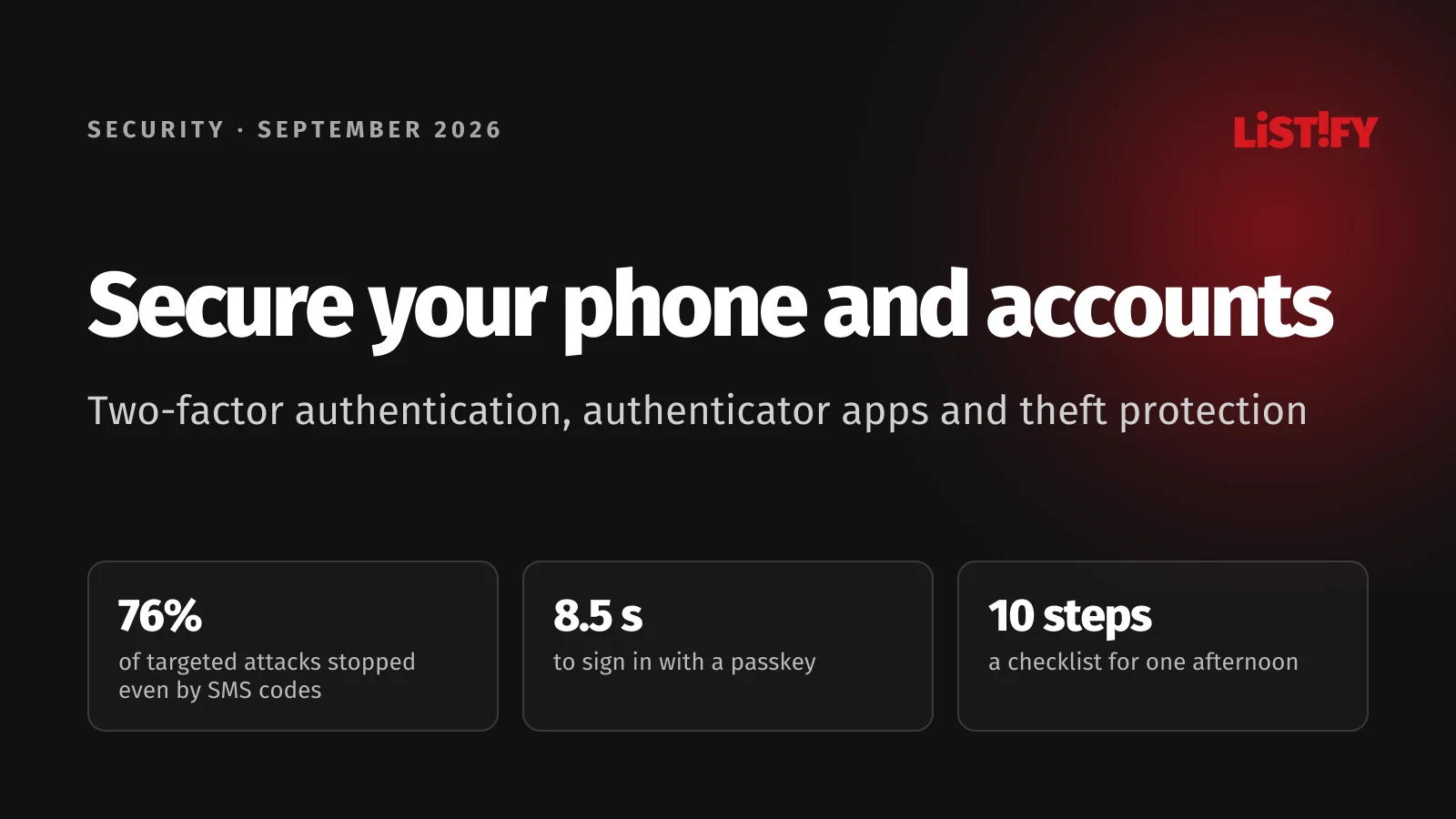
This guide shows you how to turn on two-factor authentication for the services that matter most, which method to choose, which authenticator apps are worth using, and how to lock down your phone in case it’s stolen.
01Quick checklist: 10 steps to a secure phone and accounts
- Turn on two-factor authentication for your email, banking and social media.
- Wherever possible, use an authenticator app or a passkey instead of text message codes.
- Save your backup codes somewhere safe, off your phone.
- Lock your phone with a PIN or password, and turn on fingerprint or face unlock.
- Turn on Theft Protection (Android) or Stolen Device Protection (iPhone).
- Turn on Find My (iPhone) or Find Hub (Android) and remote wipe.
- Set a PIN on your SIM card.
- Install system and app updates as soon as they’re available.
- Use a different password for every account, ideally from a password manager.
- Check whether your email address has been exposed at haveibeenpwned.com.
02What two-factor authentication is, and why a password isn’t enough
Two-factor authentication (2FA) means that when you sign in, you confirm something else on top of your password, usually a code or a prompt on your phone. Passwords leak in data breaches, get typed into fake websites, or get guessed. Without your phone, though, an attacker can’t complete the second step.
Google measured how much this helps, together with researchers from New York University and the University of California, San Diego. When Google asked for a second step on a suspicious sign-in, a text message code stopped 96% of bulk phishing attacks and 76% of targeted attacks. An on-device prompt stopped 99% and 90%, and no user who signed in only with a security key fell for targeted phishing (Google Security Blog).
- Text message codeBulk phishing: 96%Targeted attack: 76%
- On-device promptBulk phishing: 99%Targeted attack: 90%
- Security keyBulk phishing: 100%Targeted attack: 100%
Source: Google, New York University and UC San Diego, May 2019. Measured on the verification challenges Google showed on suspicious sign-ins. All three methods stopped 100% of automated bots.
03Which methods are safest
Not every second step offers the same protection. Here they are, from strongest to weakest:
| Method | Security | Convenience | Watch out for |
|---|---|---|---|
| Passkey | Highest | High | Only works where the service supports it. Can’t be used on a fake site. |
| Hardware key (e.g. YubiKey) | Highest | Medium | Costs roughly €35 to €70, and you should keep a backup key. |
| Authenticator app | High | High | You can still be tricked into typing the code on a fake site. |
| App approval (push) | High | Highest | Never approve a sign-in you didn’t start yourself. |
| Text message code | Medium | High | Vulnerable to SIM swapping and phishing sites. |
| Email code | Low | Medium | If someone takes over your email, they get the code too. |
Our advice: Use a passkey or an authenticator app wherever you can. Stick with text message codes only where nothing else is offered. Even SMS is far better than no two-factor authentication at all.
What are passkeys? A newer way to sign in without a password. Instead, you confirm with your fingerprint, face or phone PIN. Each passkey is tied to one specific website, so a fake site can’t use it. Google, Apple, Microsoft, WhatsApp and many other services already support them.
Passkeys are also faster. According to a FIDO Alliance survey of major services, signing in with a passkey takes 8.5 seconds on average, compared with 31.2 seconds for a password plus another verification step, and 93% of attempts succeed versus 63% (FIDO Passkey Index).
- Password plus another step31.2
- Passkey8.5
Source: FIDO Alliance, Passkey Index, October 2025, data from the services taking part in the survey.
04Where and how to turn on two-factor authentication
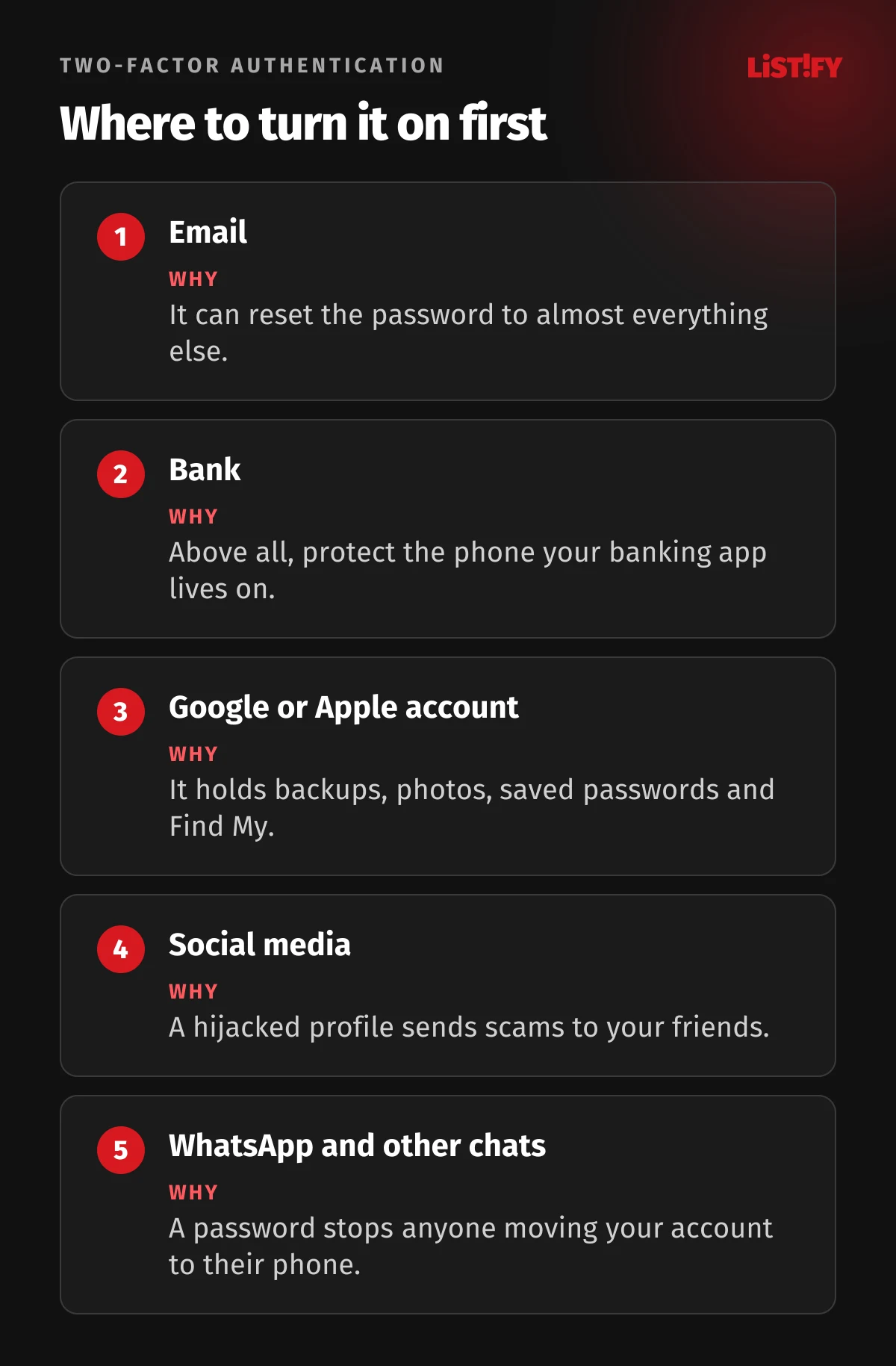
Start with your email. Almost every other account can be reset through it, so whoever controls your inbox can get into everything else. Then move on to your bank, social media and messaging apps. Menu names may vary slightly depending on your app version.
Google (Gmail, YouTube, Android)
- Go to myaccount.google.com and open Security & sign-in.
- Under “How you sign in to Google”, select 2-Step Verification and follow the steps.
- In the same section, create a passkey as well, for faster and safer sign-ins.
Apple Account (iPhone, iCloud)
- On your iPhone, open Settings, tap your name and choose Sign-In & Security.
- Check that Two-Factor Authentication is on. Most accounts have it on automatically.
Microsoft (Outlook, Hotmail, Windows)
- Go to account.microsoft.com, open the Security tab and choose Manage how I sign in.
- Under Additional security, turn on Two-step verification.
Facebook and Instagram
- Open Accounts Center and go to Password and security.
- Choose Two-factor authentication, pick your account and select an authentication app as your method.
- Open Settings, then Account and Two-step verification.
- Set a password. Since August 2026 this is no longer just a six-digit PIN but a full password with letters and numbers (WhatsApp). It stops anyone from moving your WhatsApp to their phone, even if they intercept your verification text.
- WhatsApp also supports passkeys, and according to WhatsApp more than a billion people already use them.
Banking: Many banks, and all banks in the EU under PSD2 since September 2019, require strong authentication, usually through approval in their mobile app. What matters most is protecting the phone your banking app lives on, and never approving a sign-in or payment you didn’t start yourself.
05Authenticator apps: which one to pick
An authenticator app generates a new six-digit code every 30 seconds. It works offline and is more secure than text messages. All of the apps below are free.
| App | Best for | Backup | Platforms |
|---|---|---|---|
| Proton Authenticator | Most people, multiple devices | Optional encrypted sync through a Proton account, or on-device only | Android, iOS, Windows, macOS, Linux |
| 2FAS | A simple phone-based app | Encrypted backup to your own iCloud or Google Drive, no account needed | Android, iOS |
| Aegis | Android users who want no cloud | Encrypted file you back up yourself | Android only |
| Google Authenticator | The simplest option | Sync through your Google account | Android, iOS |
| Microsoft Authenticator | Microsoft work and school accounts | iPhone to iCloud, Android through your Microsoft account | Android, iOS |
Proton Authenticator is open source, works without an account, and can import codes from Google Authenticator, 2FAS, Aegis and other apps (Proton). 2FAS needs no account and backs up your codes, encrypted, to your own cloud storage (2FAS). We no longer recommend the once popular Authy for new users, since its desktop apps were shut down on March 19, 2024 (Twilio).
Our pick: Proton Authenticator or 2FAS for most people. If you’re on Android and want your codes to stay on your device, go with Aegis.
06Backup codes: don’t skip them
When you turn on two-factor authentication, most services offer you a set of backup (recovery) codes. They’re what you use if you lose your phone. Without them, getting back into your account can take weeks, or might not be possible at all.
- Print your backup codes or store them in a password manager, not just on your phone.
- Turn on backup in your authenticator app so you don’t lose every code at once when you switch phones.
- Where possible, add a second method, such as a backup phone number or a second passkey.
07How to secure the phone itself
Your phone is now the key to all your accounts. If a thief grabs it while it’s unlocked, they can get into your email and bank within minutes. That makes securing the device just as important as securing your accounts.
Screen lock: Use at least a six-digit PIN or a password, not a simple pattern. Add fingerprint or face unlock so you don’t have to type your code in public, where someone might be watching.
Theft protection on Android
Since 2024, Android has had a set of anti-theft features. Some may be on automatically, but on most phones you have to turn them on yourself (Tech Advisor):
- Theft Detection Lock uses the phone’s sensors to spot someone snatching it from your hand and running off, and locks the screen immediately.
- Offline Device Lock locks the phone if a thief disconnects it from the internet.
- Failed Authentication Lock locks the phone after repeated failed sign-in attempts.
- Remote Lock at android.com/lock locks your phone from any browser, using just your phone number.
- Identity Check requires your fingerprint or face to change sensitive settings when you’re away from trusted places. Since January 2026 it also covers banking apps and other apps that use biometric sign-in (Google).
You’ll find them in Settings under Google, All services, Personal & device safety and Theft protection (Google Help).
Stolen Device Protection on iPhone
Check it in Settings under Face ID & Passcode. On newer versions of iOS it may be on automatically. When your phone is away from familiar locations, it requires Face ID or Touch ID, not just your passcode, to change your Apple Account password and other sensitive settings, and for a password change it also waits an hour and asks you again (Apple). A thief who watched you type your code can’t do much with it.
More settings that take a few minutes
Find your device: Turn on Find My on iPhone or Find Hub (formerly Find My Device) on Android. If you lose your phone, you can then locate it, lock it or wipe it remotely.
SIM PIN and carrier protection: A SIM PIN stops a thief from putting your SIM into another phone and receiving your text codes. Also set a PIN or password on your carrier account, and turn on port-out or SIM-swap protection if your carrier offers it, so no one can move your number to a new SIM.
Hide notification content on the lock screen: Otherwise anyone can read a text message code without unlocking your phone.
Updates and apps: Install system and app updates as soon as they come out. Only download apps from Google Play or the App Store, and check what permissions new apps ask for.
Public Wi-Fi: At the airport or in a café, add a VPN that encrypts your traffic. You’ll find an overview in our VPN comparison for 2026, and free options in our guide to the best free VPNs. A VPN won’t protect your accounts, though. That’s what two-factor authentication is for.
08Passwords: reusing one password is the biggest mistake
If you use the same password in several places and one service leaks it, attackers will automatically try it on your email, bank and social media. Two-factor authentication is your safety net, but unique passwords are the foundation.
- A different password for every account. The easiest way is to let a password manager create and remember them for you. You only need to remember one strong master password.
- Length beats complexity. A password made of four or five random words is safer, and easier to remember, than a short one full of special characters.
- Browser password managers: The built-in managers in Chrome, Safari and Edge are better than nothing. A dedicated password manager offers more, though, such as sharing with family.
09Check whether your details have leaked
Enter your email address at haveibeenpwned.com to see which data breaches it has turned up in. If it has, change the password for that service and anywhere else you used the same one. Google offers a similar check in Password Checkup at passwords.google.com, and Apple in the Passwords app under Security.
10What to do if your phone is stolen
Act fast. Every minute counts:
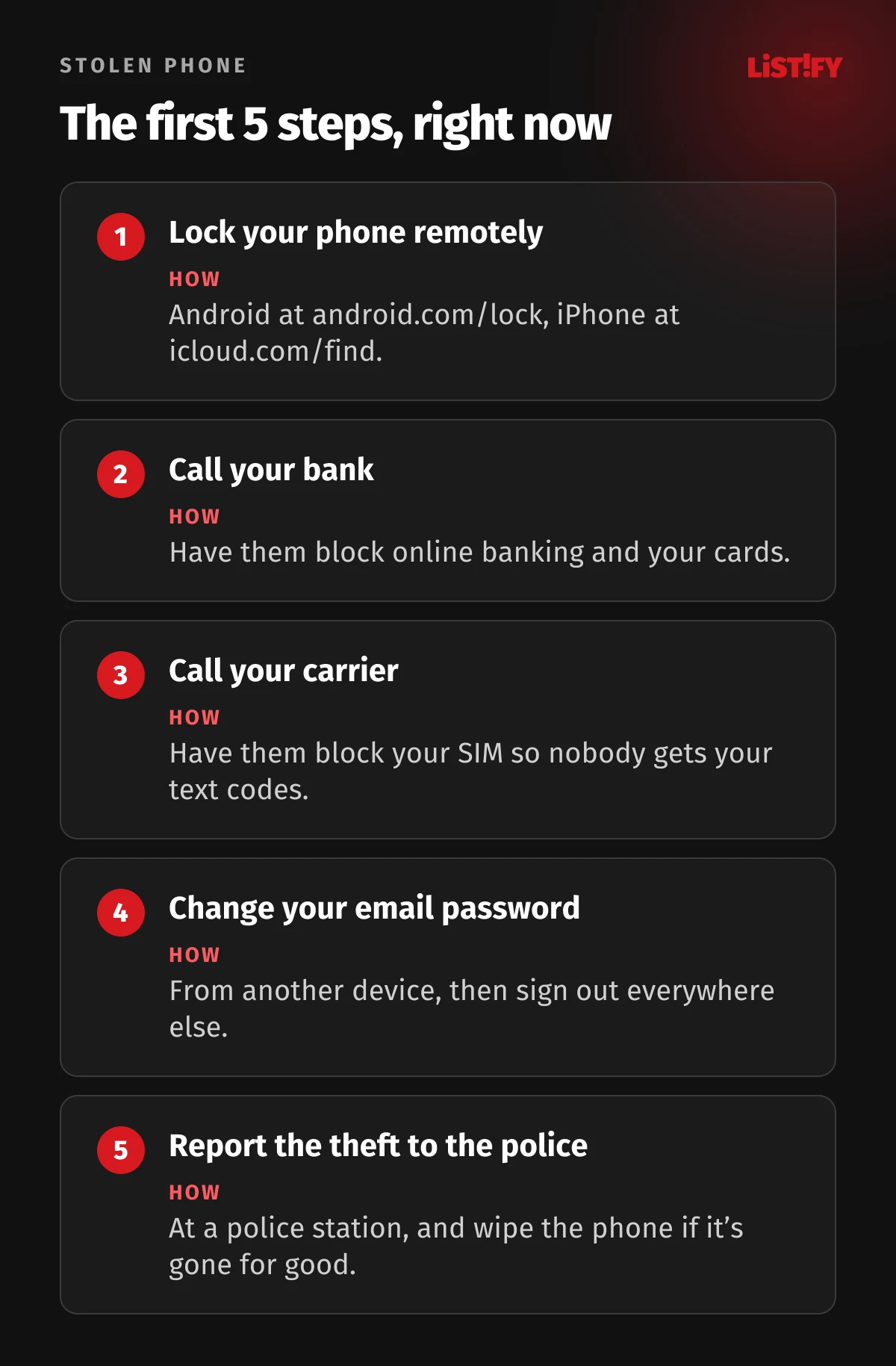
- Lock your phone remotely. On Android, go to android.com/lock. On iPhone, use icloud.com/find or the Find My app on another Apple device.
- Call your bank and have them block online banking access and your cards.
- Call your carrier and have them block your SIM.
- From another device, change your email password and sign out of all other devices. Then change the passwords for your other important accounts.
- If you can’t get the phone back, wipe it remotely and report the theft to the police. If the theft is happening right now, call your local emergency number.
11What to do if someone takes over your account
- Try to sign in and change your password right away. If that fails, use the account recovery process on the service’s official website.
- In the security settings, sign out of all devices and check that the attacker hasn’t changed your recovery email or phone number.
- Turn on two-factor authentication if the attacker turned it off, or if you never had it.
- Warn your friends and family that scam messages might be sent in your name.
12FAQ
Do I really need two-factor authentication?
Yes. It’s the single most effective easy step you can take to protect your accounts. It keeps you safe even if your password leaks or you type it into a fake website.
What if I lose the phone with my authenticator app?
Use the backup codes you saved when you turned on two-factor authentication, or restore your codes from the app’s backup on your new phone. That’s why keeping backup turned on matters.
Is text message verification safe?
It’s much better than nothing, but it’s the weakest of the common methods. A scammer can move your number to their SIM or lure you to a fake site. Where you can, choose an authenticator app or a passkey.
What is a passkey?
A way to sign in without a password. You confirm with your fingerprint, face or phone PIN. It doesn’t work on fake websites, which makes it safer than a password plus a code.
Do I need antivirus on my phone?
For everyday use, the built-in protection (Google Play Protect on Android, iOS security on iPhone) is usually enough, as long as you only install apps from the official stores and keep everything updated.
Should I turn on two-factor authentication for less important accounts too?
Ideally yes, especially anywhere you’ve saved a payment card or personal details. Start with your email, bank and social media, though.
13Want to keep strangers out of your system?
The same rules apply to business websites and systems. A leaked password to your online store’s admin or your CRM can do more damage than a stolen phone.
We design and build custom websites and custom systems from scratch. We can protect admin sign-ins with two-factor authentication, just like our own.
14Sources
- Google Security Blog: How effective is basic account hygiene at preventing hijacking (May 2019)
- FIDO Alliance: Passkey Index (October 2025)
- Google Security Blog: New Android Theft Protection Feature Updates (January 2026)
- Google Help: Theft protection
- Google Help: 2-Step Verification
- Apple Support: Stolen Device Protection
- Apple Support: Two-factor authentication for Apple Account
- Microsoft Support: Two-step verification
- WhatsApp: passkeys and a password for two-step verification (August 2026)
- Proton Authenticator
- 2FAS: Is 2FAS backup safe
- Twilio: End of life of Authy desktop apps
- Tech Advisor: Android theft protection (May 2026)